How to Set Up Instagram Broadcast Channels for Clients
For marketing agencies and social media managers, Instagram's Broadcast Channels feature is a game-changing tool for client communication. It offers a direct, one-to-many messaging channel to build a loyal and engaged community around a brand. This guide will walk you through everything you need to know about setting up and managing a successful Instagram Broadcast Channel for your clients.
Table of Contents
- What Are Instagram Broadcast Channels?
- Why Your Clients Need a Broadcast Channel
- A Step-by-Step Guide to Setting Up a Broadcast Channel
- Content Strategy for Your Client's Broadcast Channel
- Managing Engagement and Nurturing Leads
- Conclusion: A Powerful Tool for Community Building
What Are Instagram Broadcast Channels?
An Instagram Broadcast Channel is a public, one-to-many messaging tool that allows creators and brands to send messages directly to their followers who choose to join. Think of it like a Telegram channel or a newsletter, but directly within the Instagram app.
Only the creator (and any admins they add) can send messages, which can include text, photos, videos, polls, and voice notes. Followers who join the channel can react to content and vote in polls, but they cannot send messages, keeping the channel clean and focused.
Why Your Clients Need a Broadcast Channel
Broadcast Channels offer a unique set of benefits for your clients:
- Direct and Instant Communication: Unlike the algorithm-driven feed, a message in a Broadcast Channel lands directly in the subscriber's inbox, ensuring high visibility.
- Deeper Community Building: It creates an exclusive space for a brand's most loyal followers, making them feel like insiders.
- Higher Engagement: The personal and direct nature of the channel often leads to higher engagement rates on polls and content than public Stories or posts.
- Drive Traffic and Sales: It's a powerful way to announce new products, share limited-time offers, and drive traffic to your client's website.
A Step-by-Step Guide to Setting Up a Broadcast Channel
Setting up a Broadcast Channel is straightforward, but it's currently only available to accounts with Creator status. If your client's account is a Business account, you'll need to switch it to a Creator account in the settings.
-
From the Instagram App:
- Tap the DM icon in the top-right corner.
- Tap the "Compose" icon (the pencil and paper) in the top-right.
- Select "Create a broadcast channel."
-
Name Your Channel: Choose a clear and compelling name for the channel.
-
Invite Your First Members: Once created, you can send your first message. You'll also get a unique link that you can share in your Stories, add to your bio, or use to invite followers to join.
-
Manage Your Channel: You can add other accounts as admins to help you manage the channel and post content.
Content Strategy for Your Client's Broadcast Channel
The content in your Broadcast Channel should feel exclusive and valuable.
- Behind-the-Scenes Content: Share sneak peeks of new products or a look into the brand's daily life.
- Exclusive Announcements: Use the channel to be the first place you announce news, sales, or product drops.
- Interactive Polls: Ask for feedback on new ideas, product names, or content your audience wants to see. This is a great way to do market research.
- Personal Updates: Share more personal, unedited thoughts from the brand's founder or team to build a stronger connection.
Managing Engagement and Nurturing Leads
While followers can't message directly in the channel, they can reply to your channel content, which will start a private DM conversation. This is a powerful way to generate warm leads.
For example, you could post a poll asking, "Are you interested in our upcoming workshop?" You can then follow up via DM with everyone who voted "Yes."
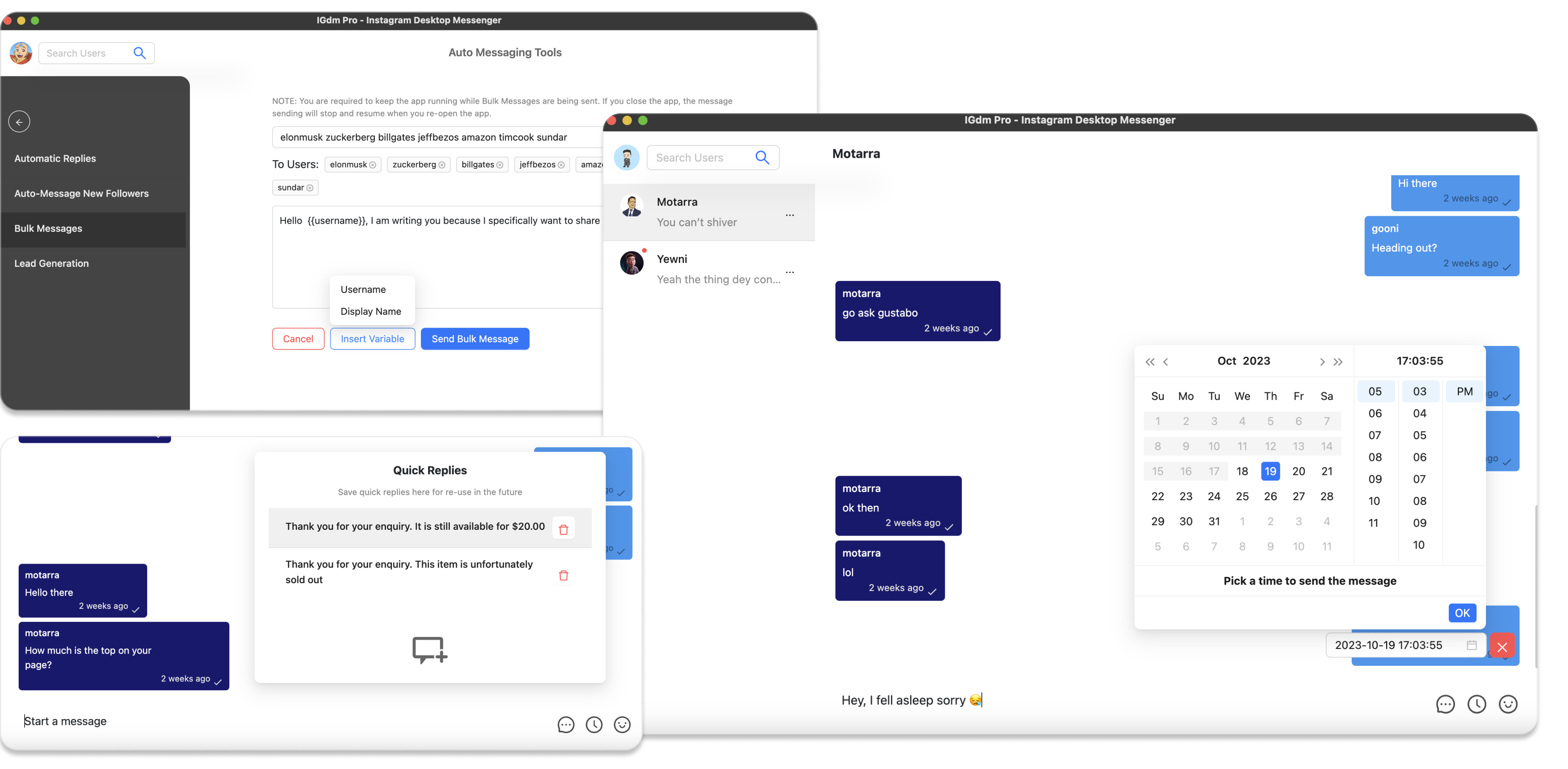
As you can imagine, this can lead to a significant increase in DMs. Managing these conversations for multiple clients requires a professional and efficient workflow. This is where a desktop DM management tool like IGdm Pro becomes essential.
With IGdm Pro, you can:
- Manage Multiple Client Inboxes: Seamlessly switch between client accounts from a single desktop application.
- Organize Conversations with Labels: As leads come in from your Broadcast Channel, use labels like "Workshop Lead" or "Product Inquiry" to keep your inbox organized and prioritize follow-ups.
- Use Quick Replies: Create templates to quickly answer common questions that arise from your channel's content.
- Set Message Reminders: Never miss a follow-up with a promising lead.
By integrating a powerful DM tool into your workflow, you can efficiently convert the engagement from your client's Broadcast Channel into tangible business results.
Conclusion: A Powerful Tool for Community Building
Instagram Broadcast Channels are a fantastic addition to any client's social media strategy. They provide a direct and personal way to build a loyal community, drive engagement, and nurture leads. By following a clear strategy for content and managing the resulting engagement with professional tools, you can deliver exceptional value and a strong ROI for your clients.