How to Resolve Windows SmartScreen When Installing IGdm Pro
Some Windows users see a Microsoft Defender SmartScreen warning when they try to install IGdm Pro. The message usually says Windows protected your PC or SmartScreen prevented an unrecognized app from starting.
This does not mean IGdm Pro is malware. SmartScreen often appears for newer or less widely downloaded apps until Windows builds enough reputation for the file. IGdm Pro is safe to install when downloaded from igdm.me.
What the SmartScreen warning looks like
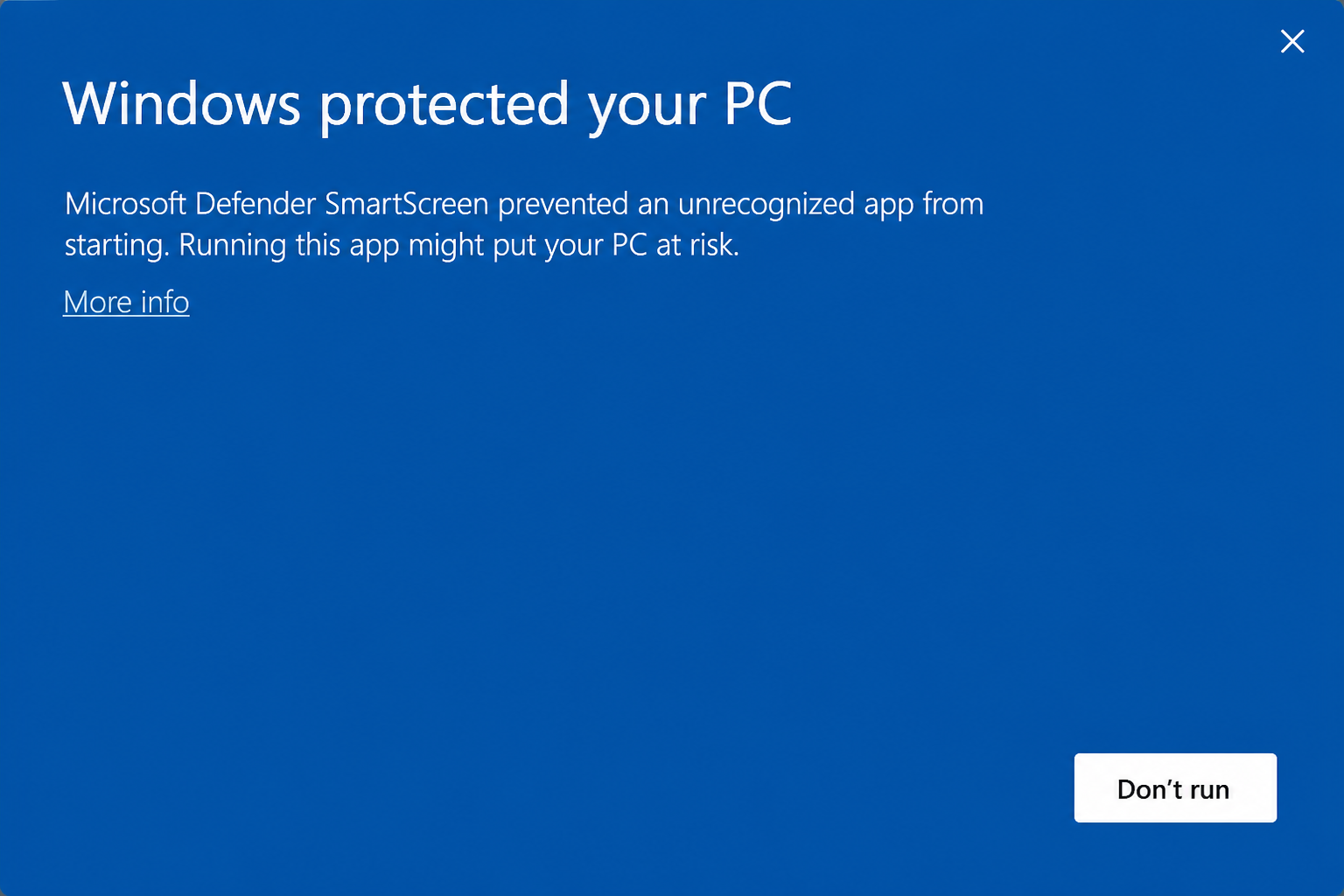
You may also see a blue banner in your browser when downloading the installer. That is the same protection layer for files from the internet.
Quick fix (recommended): Unblock the installer file
If SmartScreen keeps blocking the app, unblock the downloaded installer before you run it:
1. Right-click the IGdm Pro installer file (usually in your Downloads folder) and select Properties.
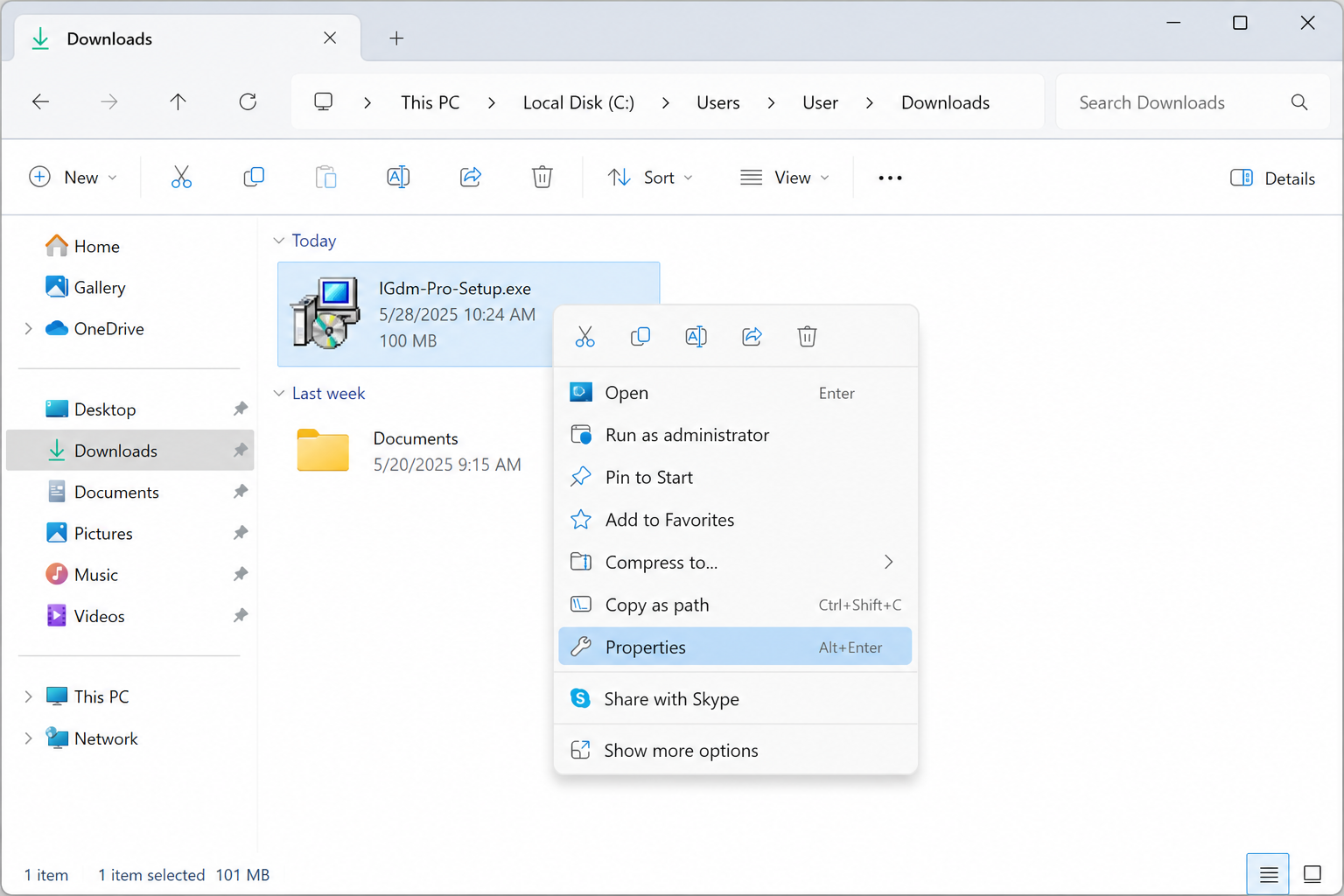
2. Open the General tab if it is not already selected.
3. At the bottom of the dialog, in the Security section, check the Unblock box.
4. Click Apply, then OK.
5. Double-click the installer again to run IGdm Pro setup.
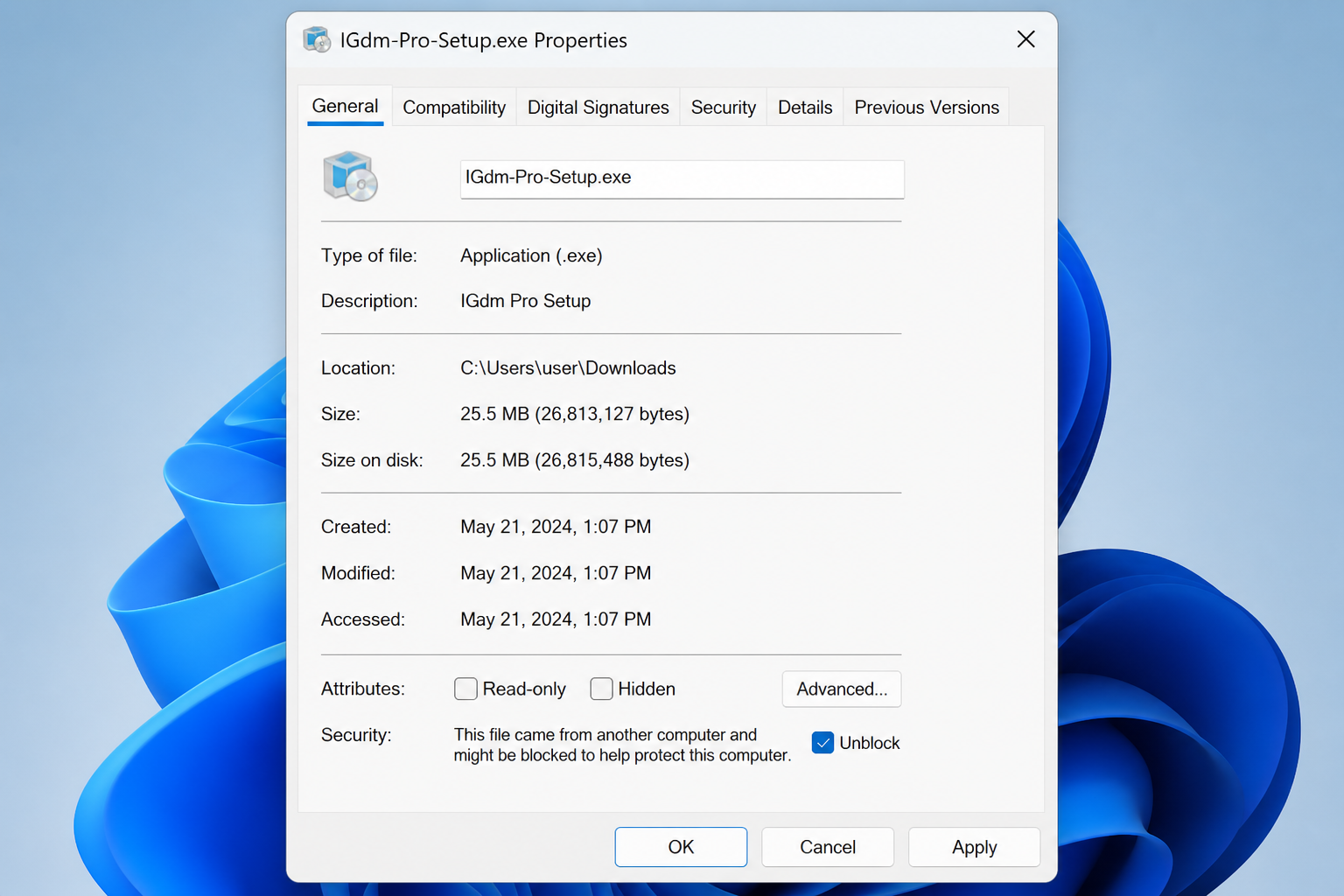
Note: If you do not see an Unblock checkbox, the file may not be marked as downloaded from the internet on your PC. Try the alternative below, or re-download the installer from igdm.me.
Alternative: Run anyway from the SmartScreen dialog
If you prefer to proceed from the warning screen itself:
- Click More info on the SmartScreen dialog.
- Click Run anyway.
- Complete the IGdm Pro installation.
You may still need to unblock the file in Properties if SmartScreen appears again on the next launch.
Still stuck?
Email us with a screenshot of the exact message you see, your Windows version, and whether you downloaded from igdm.me. We will help you get set up.