What Proxy Do I use for Instagram Automations
If you automate Instagram DMs, or outreach campaigns, you have probably seen advice to "use a proxy". That advice is often vague: Some teams never need one, and others running many accounts from one machine absolutely do.
This guide explains when a proxy makes sense for Instagram automation, what kind to look for, which providers are known to work, and how to wire one up in your tooling.
What a proxy does for Instagram automation
A proxy is a middle server between your app and Instagram. Instead of Instagram seeing your computer's home or office IP address, it sees the proxy's IP address.
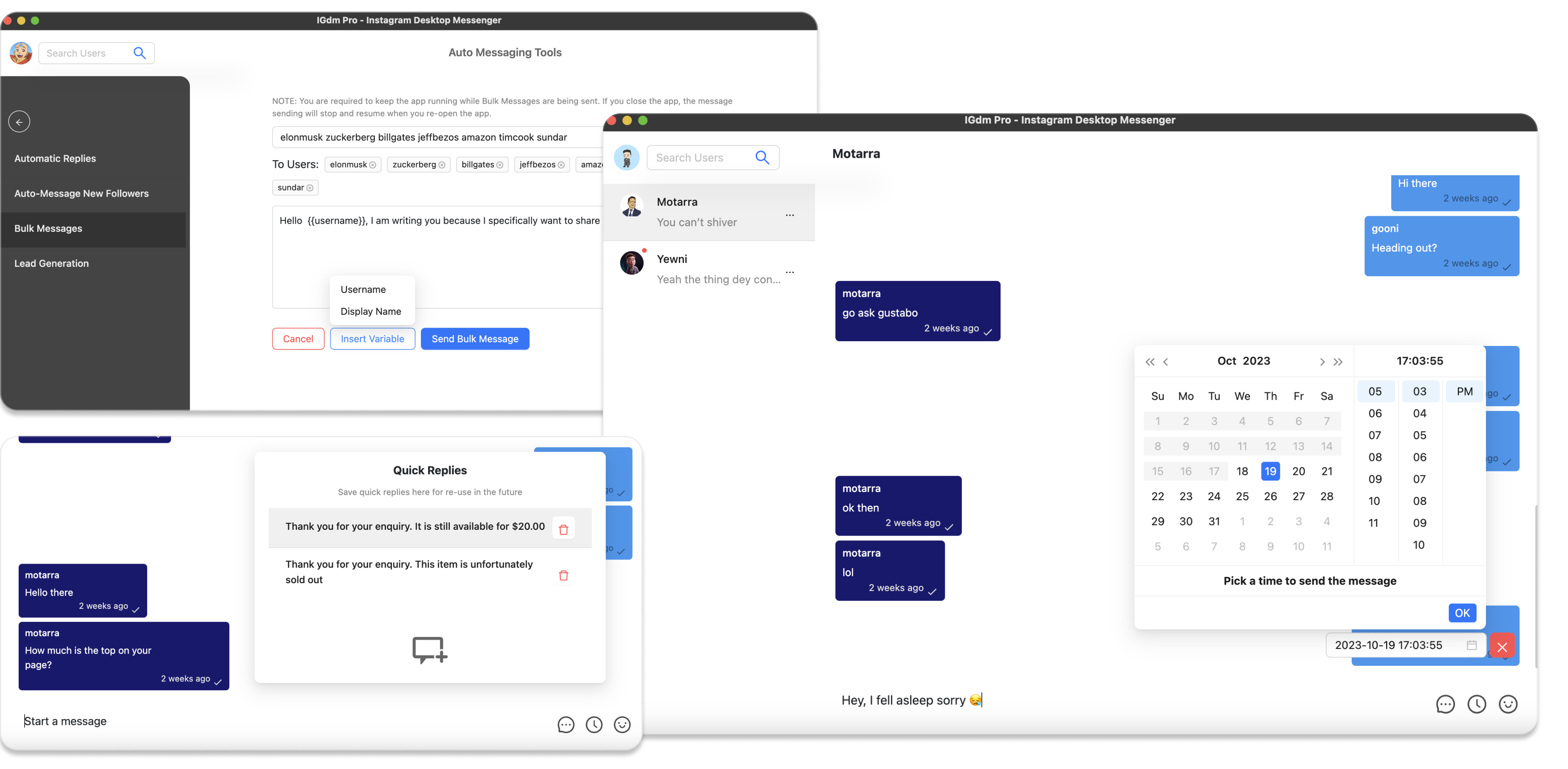
If your tool is a Chrome extension or desktop app like IGdm Pro that runs on your computer and requires you to keep it on, Instagram normally sees the same IP you use for everyday browsing. That is ideal for most single-account users. When you add a proxy, that account's traffic routes through the proxy IP instead.
Cloud-based tools are different: they run on remote servers, so Instagram sees whatever IP that infrastructure uses. Those setups often need proxies built into the service, or you configure them so each account gets its own IP on the provider's side.
Proxies are mainly useful when you need different IP addresses for different Instagram accounts on the same device or server, or when you need traffic to appear from a specific country or network type.
Do you actually need a proxy?
Whether you need a proxy depends on how your tool runs.
Local tools (Chrome extensions, desktop apps like IGdm Pro): if you automate one or a few accounts from your normal computer, your regular IP is usually the safest and most natural option. You typically do not need a proxy unless you are scaling account count or hitting IP-related limits.
Cloud tools: you are more likely to need proxies, because accounts often share the provider's server IPs by default. Check whether your service assigns a unique IP per account or expects you to bring your own proxy configuration.
You should consider proxies if you:
- Run many Instagram accounts from the same computer (a common rule of thumb is 10 or more logged in at once)
- Manage client accounts as an agency and need each account isolated on its own IP
- Need sessions to appear from a specific country that does not match your real location
- Have already seen login or action blocks that point to IP or location mismatch
If none of those apply, you may skip proxies for now and focus on pacing, message variation, and account warm-up instead. See How to Automate Instagram Outreach Without Getting Banned for that side of safe automation.
The golden rule: one proxy per account
This is the mistake we see most often. Assigning the same proxy to every account does not help. All of those accounts still share one IP, which is effectively the same as using no proxy at all.
Use a dedicated proxy per Instagram account. Each account session should have its own proxy so Instagram sees a distinct IP for each login.
What type of proxy should you use?
Proxy providers sell many labels. For Instagram automation, these are the types that matter in practice:
Residential proxies route traffic through real home ISP connections. They tend to look the most natural to platforms and are a strong default for Instagram work when you need proxies at all.
Mobile proxies route through cellular networks. They are often the most trusted IP type, but also among the most expensive. Useful for high-value accounts or when residential IPs are not stable enough.
ISP proxies (sometimes called static residential) give you a fixed residential-like IP. Good when you need consistency session to session instead of rotating addresses.
Datacenter proxies are cheap and fast, but easier for platforms to flag. They can work for light testing, but they are a poor fit for long-term Instagram automation on accounts you care about.
Avoid free public proxies. They are slow, unreliable, often already burned on major platforms, and can put account credentials at risk.
In short: for production Instagram automation, prefer residential or mobile proxies from a reputable provider, with one sticky IP per account when possible.
HTTP vs SOCKS5: which protocol should you use?
Most Instagram automation setups support HTTP and SOCKS5 proxies. Your provider dashboard will usually give you:
- Protocol: HTTP, HTTPS, or SOCKS5
- Host and port: for example
162.89.xxx.xxx:8080 - Username and password: if authentication is required
HTTP proxies are widely supported and easy to configure. SOCKS5 can be more flexible for some tools and networks. Some setups also support SOCKS5h, where hostnames resolve on the proxy server rather than locally. If login fails on SOCKS5, try SOCKS5h or switch to HTTP if your provider offers it.
Your provider will give you either a full proxy URL or separate host, port, username, and password fields. Paste those into your automation tool, anti-detect browser, or browser profile according to its proxy settings.
What to look for in a proxy provider
Look for providers that offer:
- Residential or mobile IPs (not only datacenter)
- Sticky or dedicated sessions so an account keeps the same IP between logins
- Geo targeting so each account can use an IP in the correct country (and city or region when your setup requires it)
- Authenticated access (username/password or IP allowlist)
- Clear documentation for HTTP and SOCKS endpoints
Two providers known to work well for Instagram automation are Decodo and Oxylabs. Both offer residential and mobile proxies with sticky sessions, country-level targeting, and HTTP or SOCKS5 support.
- Decodo (formerly Smartproxy): residential, mobile, and ISP proxies with sticky sessions and city-level targeting. A practical starting point for multi-account Instagram work.
- Oxylabs: large residential and mobile proxy pools with session control and geo targeting, commonly used for social media and multi-account setups.
Before you buy a large plan, test one proxy from your chosen provider with one Instagram account. Confirm login, DM sending, and inbox loading all work before rolling out to more accounts.
How to set up a proxy in practice
The exact steps depend on your tool, but the pattern is the same:
- Create a proxy endpoint in your provider dashboard (pick country, sticky session, and protocol).
- Copy the host, port, username, and password.
- Enter them in your tool's proxy settings before logging into Instagram.
- Log in to Instagram through that proxied session and confirm the IP matches the location you expect.
- Assign a different proxy to each additional account.
If login fails, double-check host and port, credentials, and that the proxy IP is in the country you expect. Test the proxy outside Instagram first (many providers include a connection checker in their dashboard).
If you use a desktop automation app like IGdm Pro, you can set HTTP or SOCKS5 proxies at login via Click to use Proxy on the sign-in screen. The proxy stays tied to that account for future sessions.
Proxies are not a substitute for safe automation
A good proxy reduces IP-related risk when you run many accounts. It does not replace:
- Reasonable DM volume and delays
- Personalized, varied message copy
- Account warm-up before heavy outreach
- Replying to inbound messages like a human would
Think of proxies as infrastructure for multi-account setups, not a bypass for Instagram's spam and trust systems.
Quick decision guide
| Situation | Recommendation |
|---|---|
| 1–3 accounts on your own computer | No proxy needed in most cases |
| 10+ accounts on one machine | Dedicated residential or mobile proxy per account |
| Agency managing client logins | One sticky proxy per client account |
| Cheap datacenter proxy for all accounts | Avoid |
| Same proxy shared across accounts | Ineffective; use unique proxies |
| Testing whether proxies help | Start with one account and one residential IP |
Conclusion
For most people automating Instagram, the best "proxy" is no proxy at all: your normal IP on your own computer. When you scale to many accounts or need geographic separation, use one residential or mobile proxy per account, configure it before login, and keep automation habits conservative.
For related guides on running outreach safely, see How to Send Bulk Messages on Instagram and How to Warm Up Your Instagram Account.