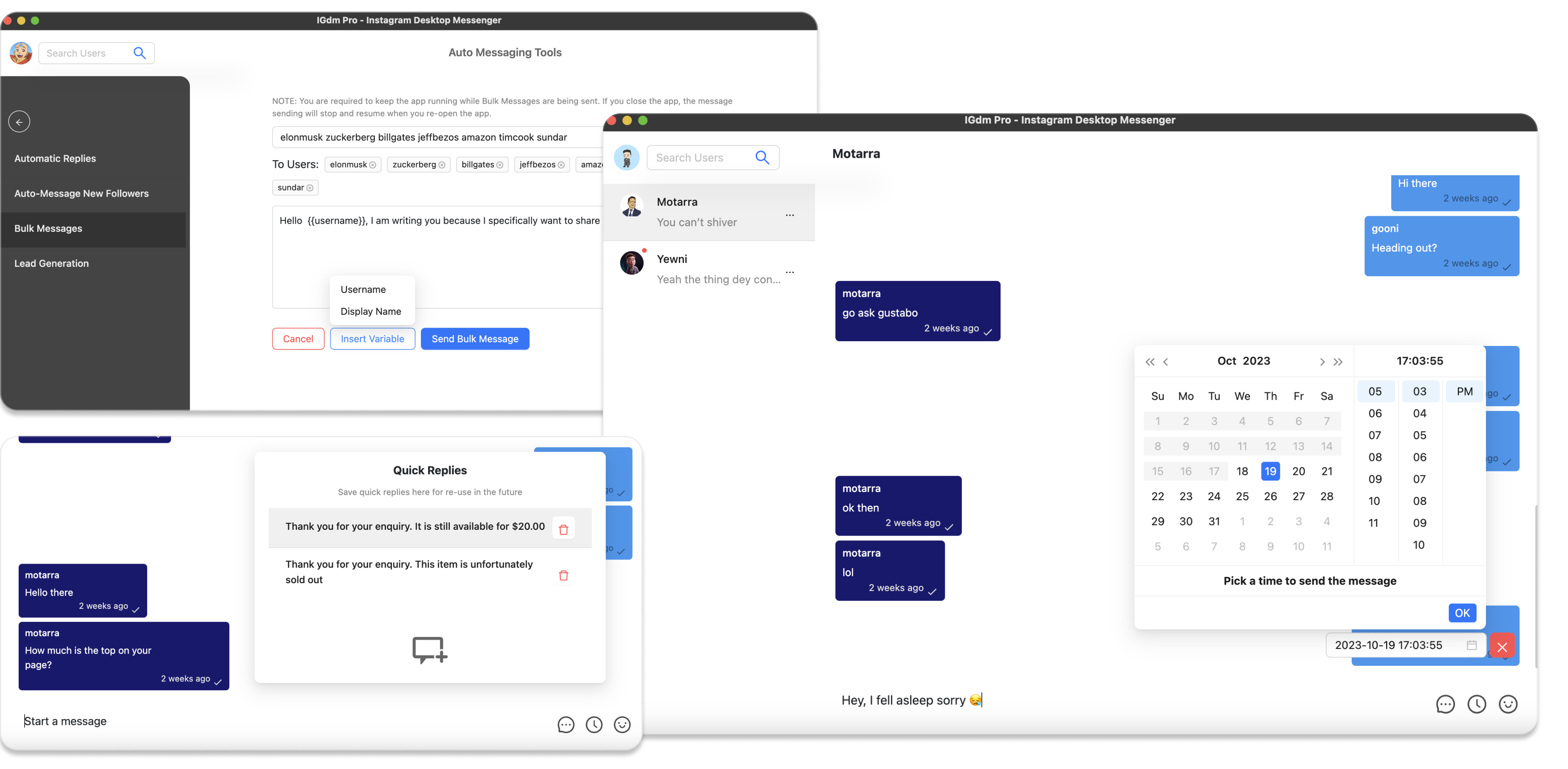
How to Automate Instagram Outreach Without Getting Banned
Instagram is quick to flag accounts that blast identical DMs, jump from zero to hundreds of outbound messages overnight, or ignore replies. If you still need scale, the practical answer is to automate with pacing and variation, not raw speed.
IGdm Pro is built around that idea for bulk outreach, and in this guide you'll learn how to use its built-in features to automate Instagram outreach safely with pacing, limits, and message variation, to reduce your risk of being flagged as spam.
For a product overview of outreach workflows, see Instagram Outreach Automation Software. Nothing here overrides Instagram Terms of Service or guarantees a specific outcome; use automation responsibly.
1. Install IGdm Pro and log in
- Visit igdm.me and download the build for your operating system (Windows, macOS, or Linux).
- Install the package, then launch IGdm Pro.
- Click Click to login with Browser. A Browser window opens loads Instagram; sign in to the account you will use for outreach.
- When login completes, the browser window closes and IGdm Pro loads your session.
For the rest of this guide please naviagte to the Bulk Messages tool (open the avatar menu in the top-left, choose Auto-Messaging Tools, then Bulk Messages).
2. Warm up the account before a heavy push
If the account has been quiet, was restricted before, or you are about to increase DM volume, run Account Warm up first. It opens a visible browser session and performs spaced actions (feed scroll, view profiles, view stories and like posts) so activity ramps gradually instead of looking like a cold bot that only sends DMs.
From Auto-Messaging Tools, choose Account Warm up, pick duration and optional actions, then start the session and leave the warm-up browser window untouched until it finishes. Plan warm-up before you schedule or start large bulk sends, not only after you notice a problem.
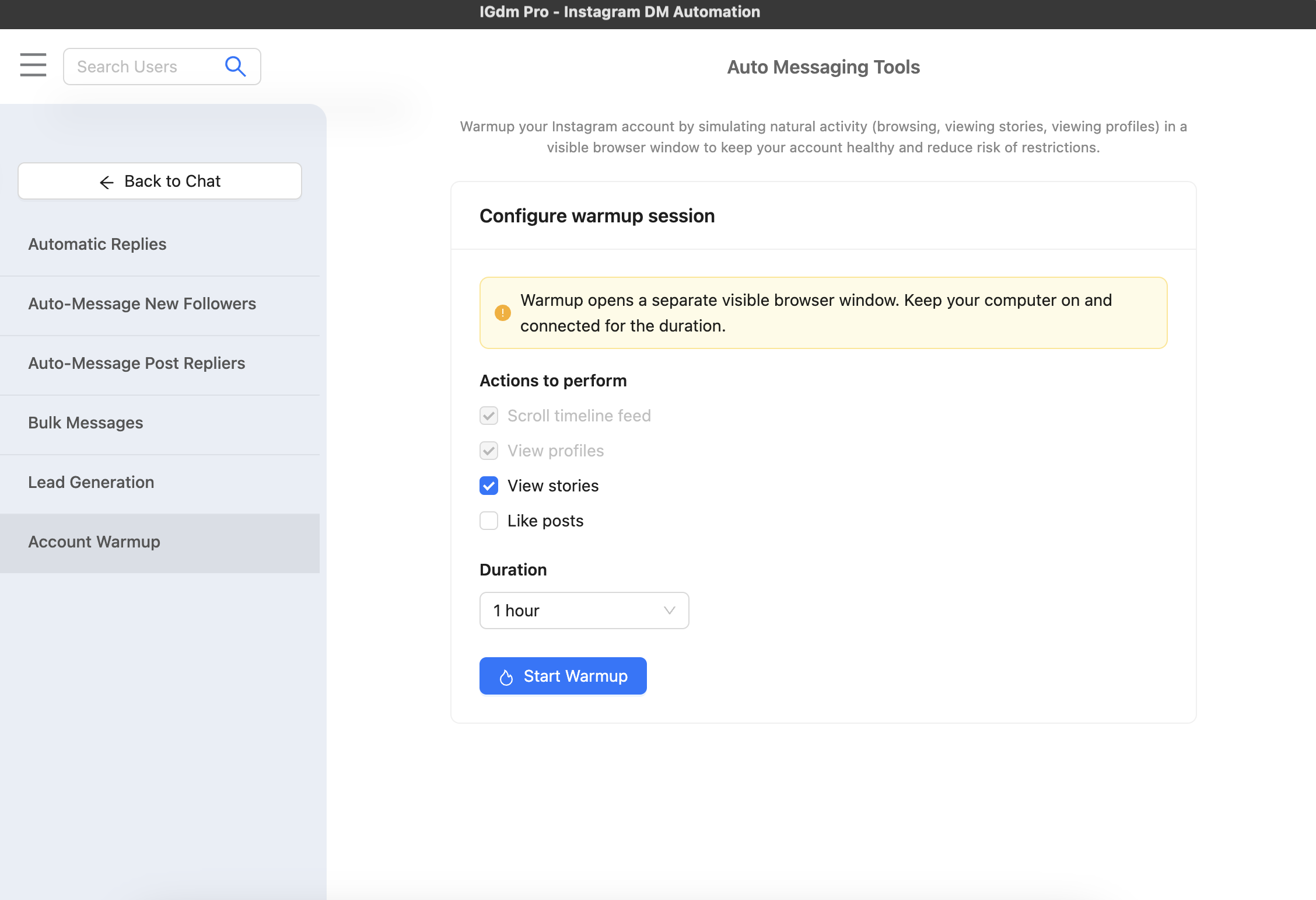
For duration options, pauses, and what to expect while the session runs, see How to Warm Up Your Instagram Account.
3. Varying Messages so every DM is not identical
The next risk is simple: If hundreds of people get the same paragraph with only their name dropped in, it looks like a mass blast. IGdm Pro gives you two ways to mix things up. Use whichever fits your time and list. Both help, but to different extents.
Option A: A spreadsheet with one message per person (strongest mix-up)
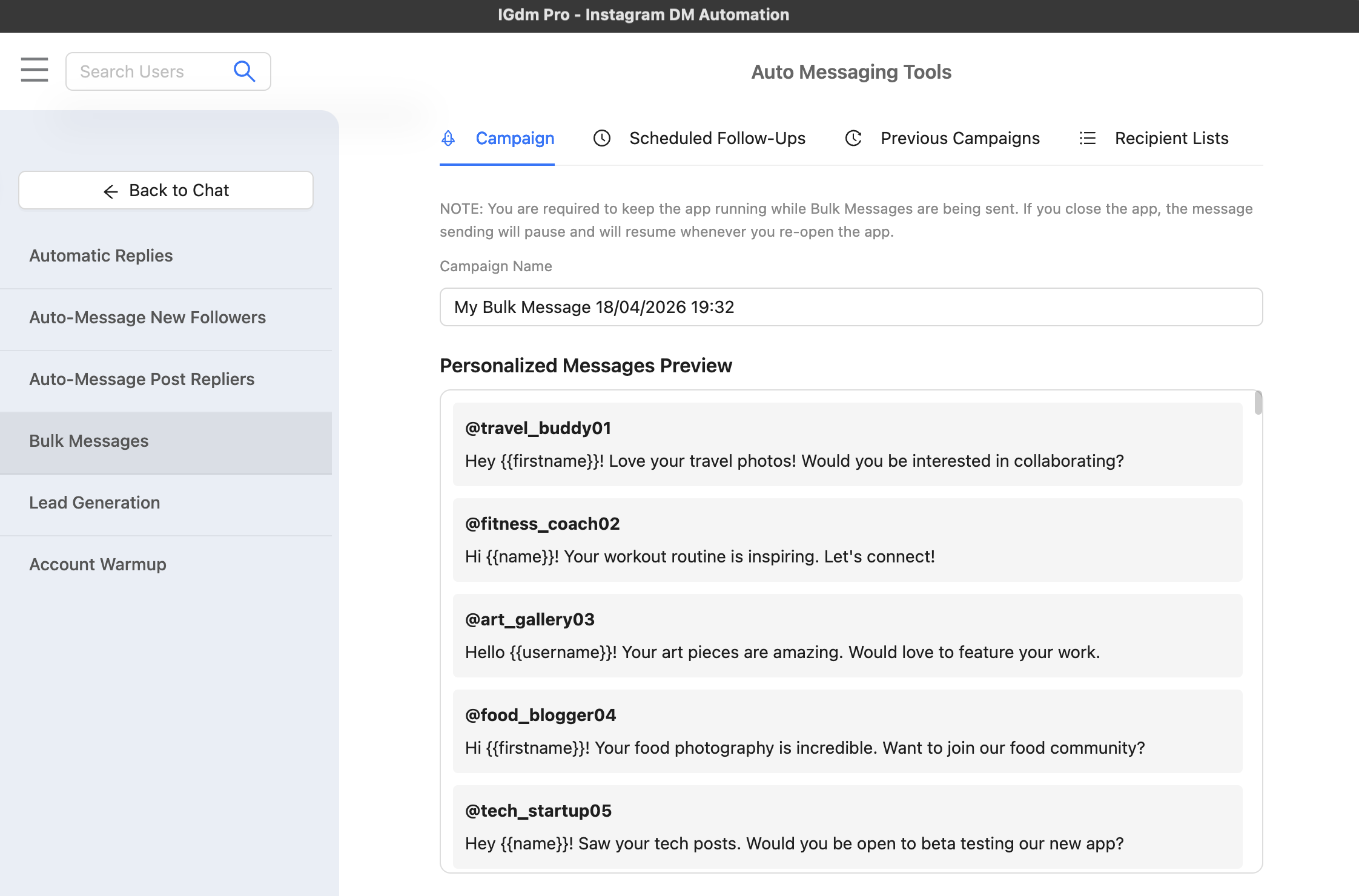
Upload a CSV file (the same kind of table you can export from Excel or Google Sheets). Add a column for each person’s Instagram username, and if you want fully custom text, add a message column with the exact words that person should receive. That way person A and person B are not reading the same script with a tiny edit.
IGdm Pro needs:
- A
usernamecolumn for every row (required). Spell column names in lowercase. - A
messagecolumn (optional): the full DM text for that user. The column is optional, but it is required if you want each person to receive a unique, fully customized message instead of the base message set in the app.
When you reach the recipient step in Bulk Messages, choose your list from a CSV file using the upload control in the app.
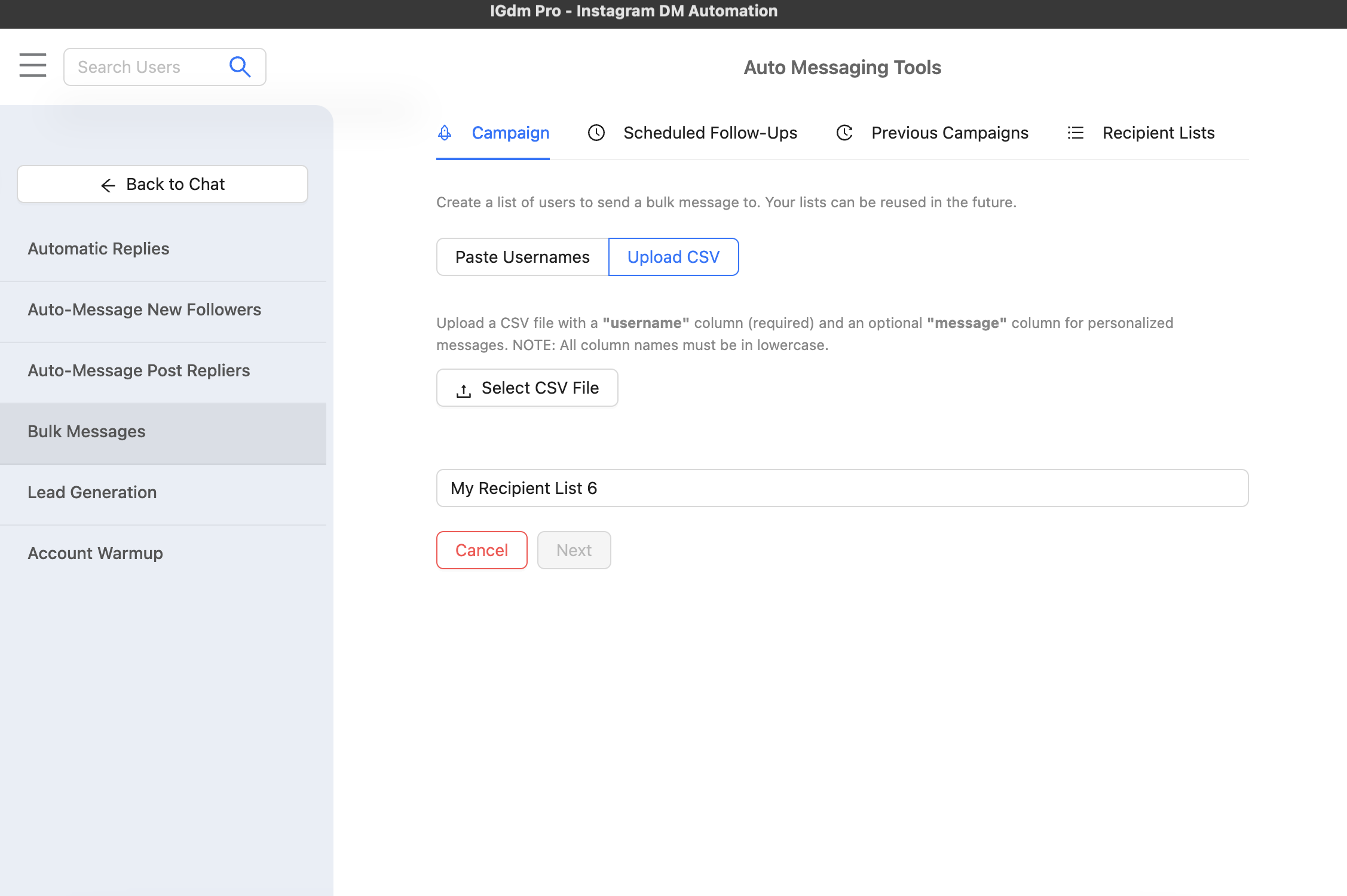
After the file is loaded, IGdm Pro shows a preview of the message for each user so you can confirm usernames and any per-row text before you continue.
Option B: A few different messages; the app picks among them
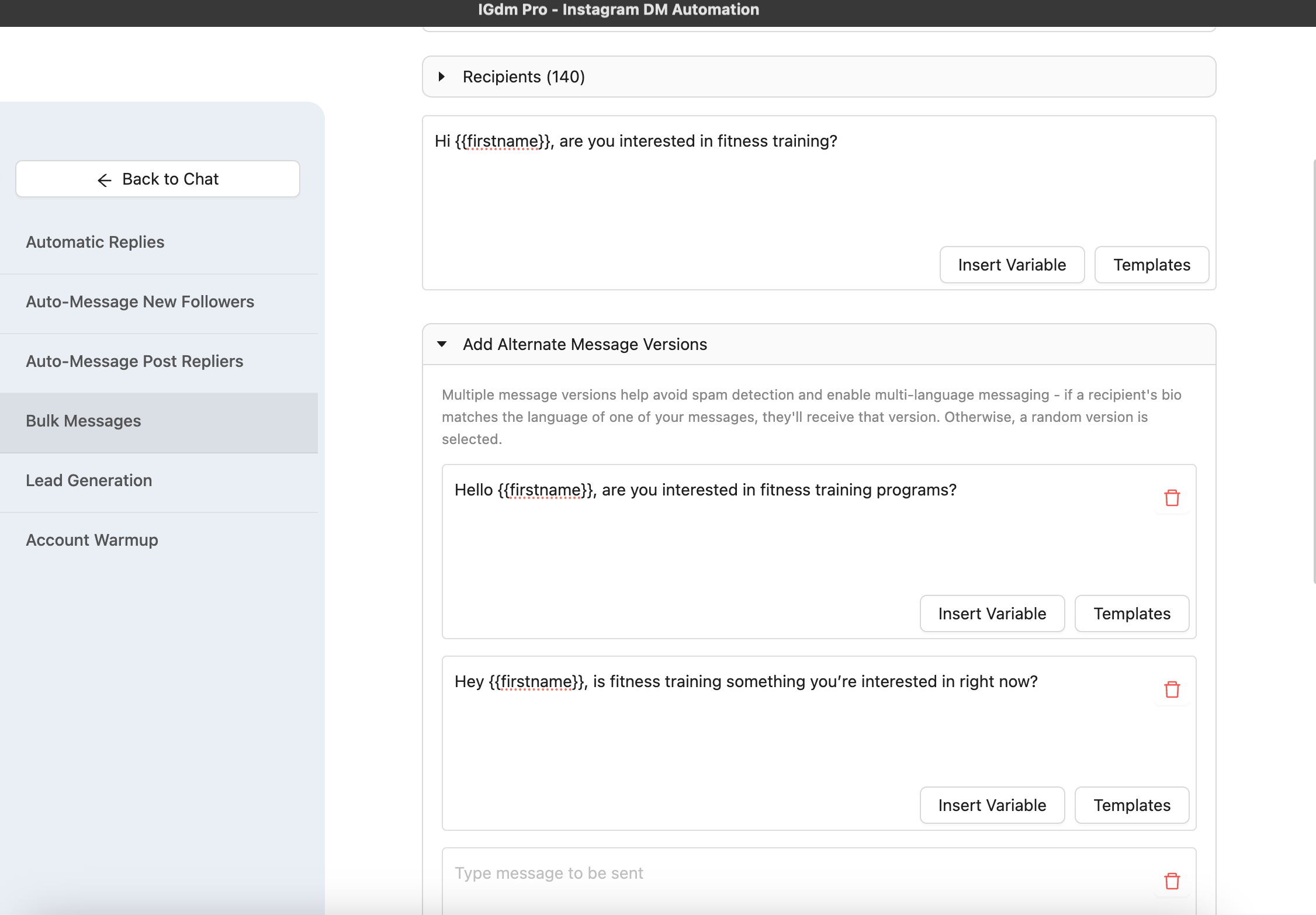
If writing a unique DM for every contact is too much work, do the next best thing: create several complete messages that say the same thing in different words. In the compose screen, use Add Alternate Message Versions. IGdm Pro will select a random version for each person it sends messages to, so you are not sending the same block of text to your whole list.
This option reuses a finite set of messages instead of a brand-new draft per person, but it still breaks the “one identical DM everywhere” pattern.
4. Cap volume with a conservative daily message limit
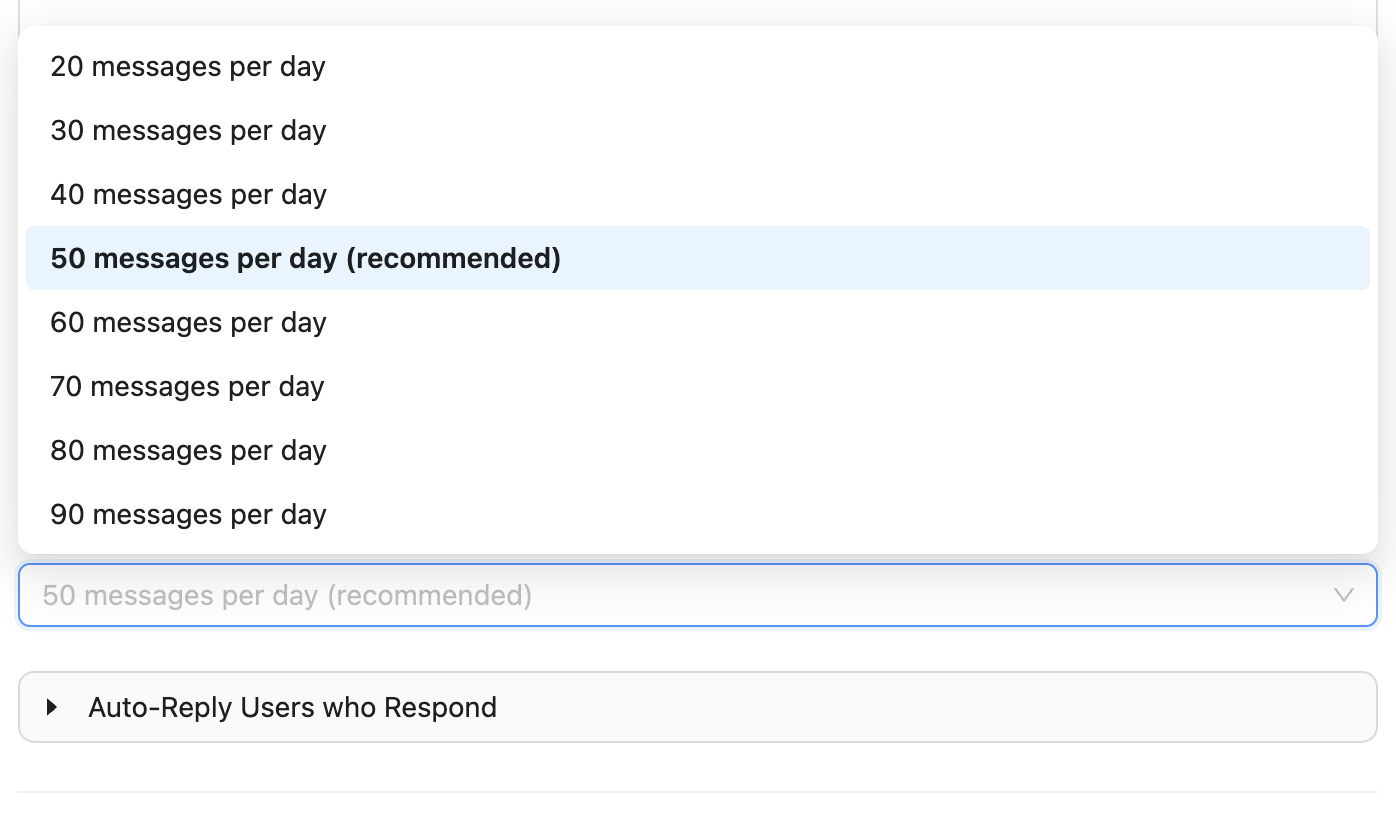
In the bulk message configuration, find Daily Message Limit. Generally lower values are safer to reduce spam-like signals.
The control offers stepped values from 20 up to 100 messages per day (increments of 10). 50 messages per day is marked as recommended in the app. If your account is newer, was limited before, or you are testing a new list, start below that and raise only after you see stable delivery.
5. Add human-like pacing with delay between messages
In the same area, set Delay Between Each Message. Randomise is the recommended option: IGdm Pro picks a random wait after each recipient so sends are not perfectly periodic (another pattern that can look automated).
Fixed delays are available if you prefer a predictable minimum gap. However, setting short delays can increase your risk so it's generally not recommended.
6. Optional: follow-ups and auto-replies for replies
You can also configure follow-up steps and auto-reply rules for people who answer. Those help you nurture threads and handle inbound text without abandoning the campaign. Use Skip follow-ups if recipient has responded when you want the sequence to stop as soon as there is a real conversation.
7. Start the campaign and keep the app running
When limits, delays, and message configuration are ready, you can now start the bulk send and monitor progress over time. If you notice any warnings or deliverability issues, you can pause the Campaign to investigate and resume anytime.
Checklist (quick reference)
- Warm up before scaling outbound volume.
- Prefer 50/day or lower on the daily message limit until the account and sends look stable.
- Use Randomise for delay between messages so timing is not robotic.
- When you can, use a CSV with a
messagecolumn (andusername, lowercase column names) so each person can get different wording. - Otherwise add alternate message versions so the app rotates through a few different full messages.
- Keep the app open while sending; monitor and adjust.
Conclusion
Automating Instagram outreach in IGdm Pro is less about “maximum messages” and more about slowing down and making each send look hand-written. Warm the account, cap daily volume, randomise spacing, use alternate message versions when a few different drafts are enough, and use a CSV with a message column when you want a different DM per person. Together those habits match how careful teams actually run outreach.