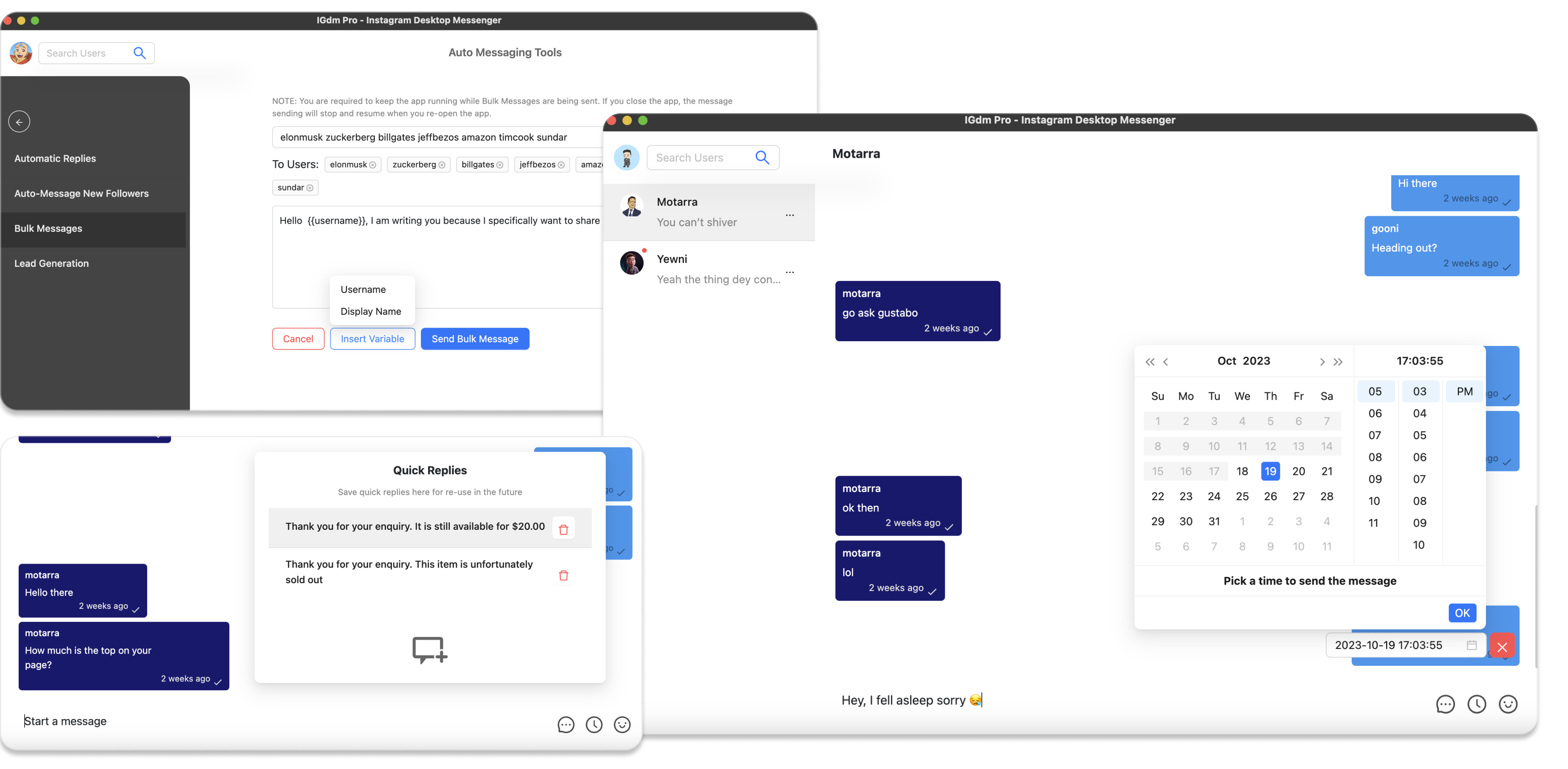
How to Warm Up Your Instagram Account
If you use Instagram heavily for automation (bulk outreach, auto-replies, or lead generation), you may want to ease into activity in a way that looks more like everyday use. IGdm Pro includes an Instagram Account Warm up tool that runs a dedicated session in a visible browser window, simulating natural behaviour such as scrolling your feed, viewing stories, and opening profiles.
This guide walks you through how to set it up, starting the session, and what to expect while it runs.
What The Account Warm Up Tool Does
IGdm Pro's warm up tool launches a Browser with your active Instagram session and performs gentle, spaced-out actions (timeline scrolling, profile viewing, and optionally view stories and like posts). The goal is to keep the account active in a human-like way and reduce the risk of sudden spikes that can trigger restrictions, which is especially useful after a break or before heavier messaging.
Install IGdm Pro and Log In
IGdm Pro is an App for Instagram DM automation. It offers bulk messaging, message scheduling, automatic replies, auto-messages to new followers, and more.
- To get started visit https://igdm.me, download the build for your operating system, install, and open the app.
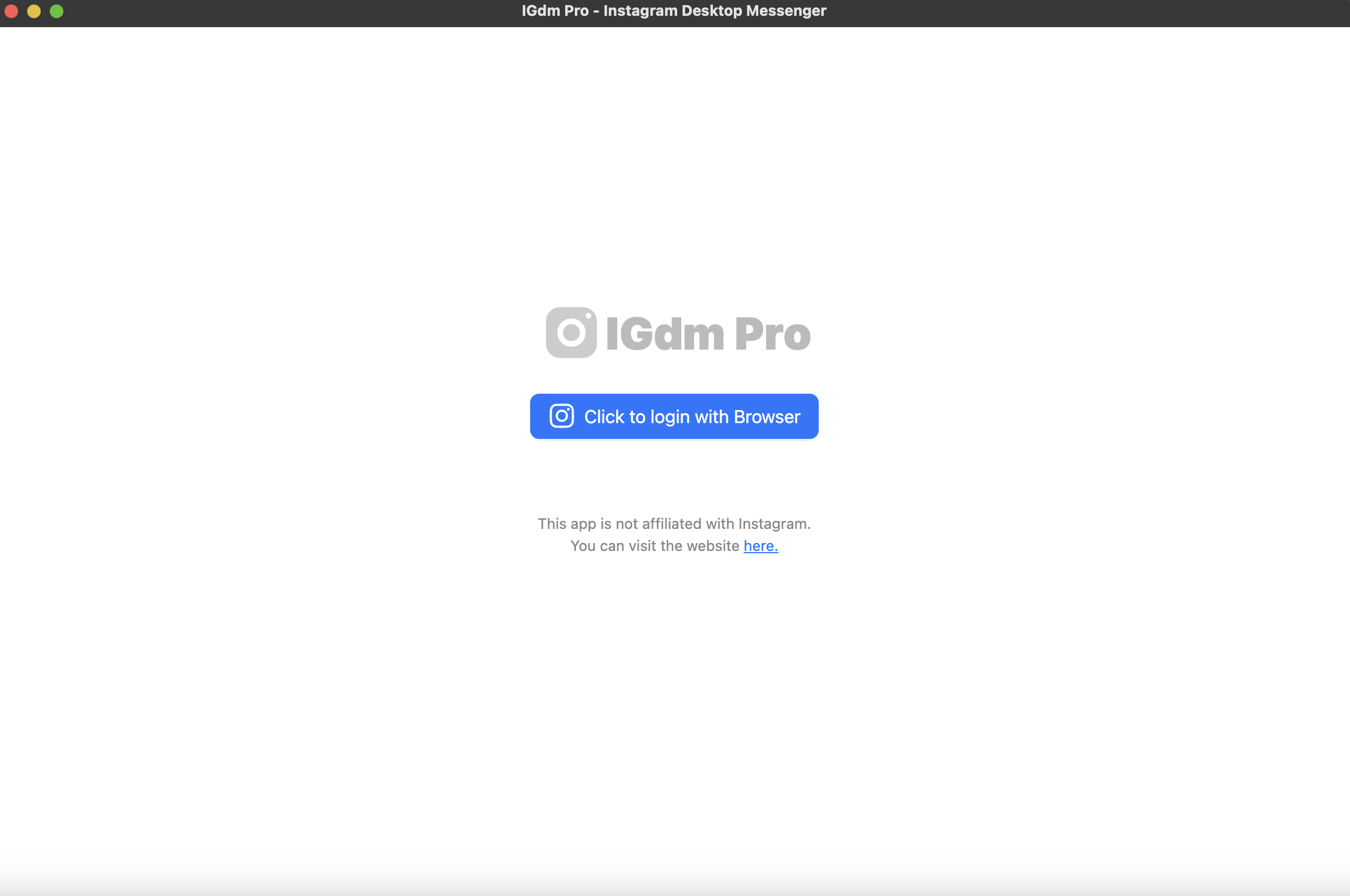
- Click the Click to login with Browser button (see screenshot below), sign in to Instagram in the window that opens, then return to IGdm Pro once login completes.
Open Auto Messaging Tools and Account Warm up
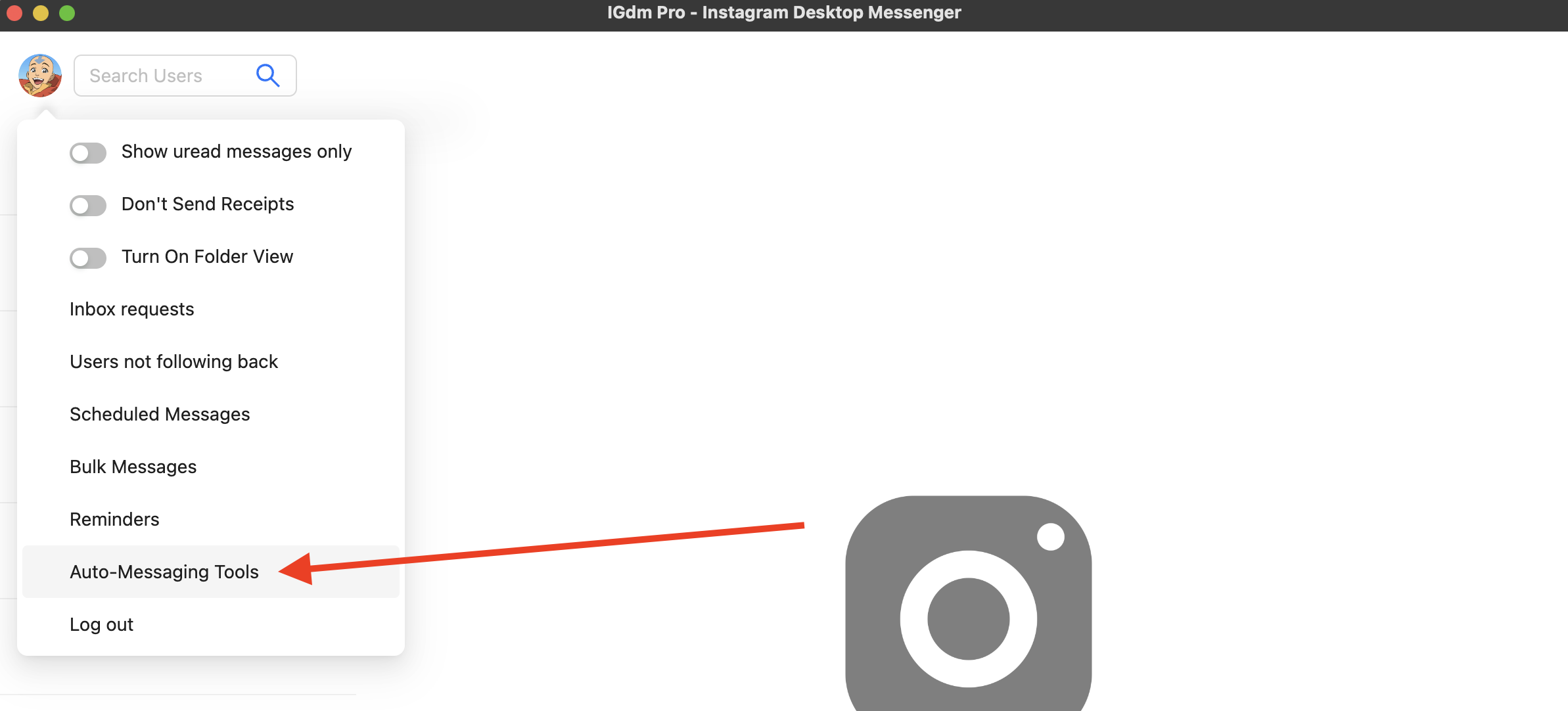
- Hover the menu in the top-left corner of the app.
- In the menu, choose Auto-Messaging Tools.
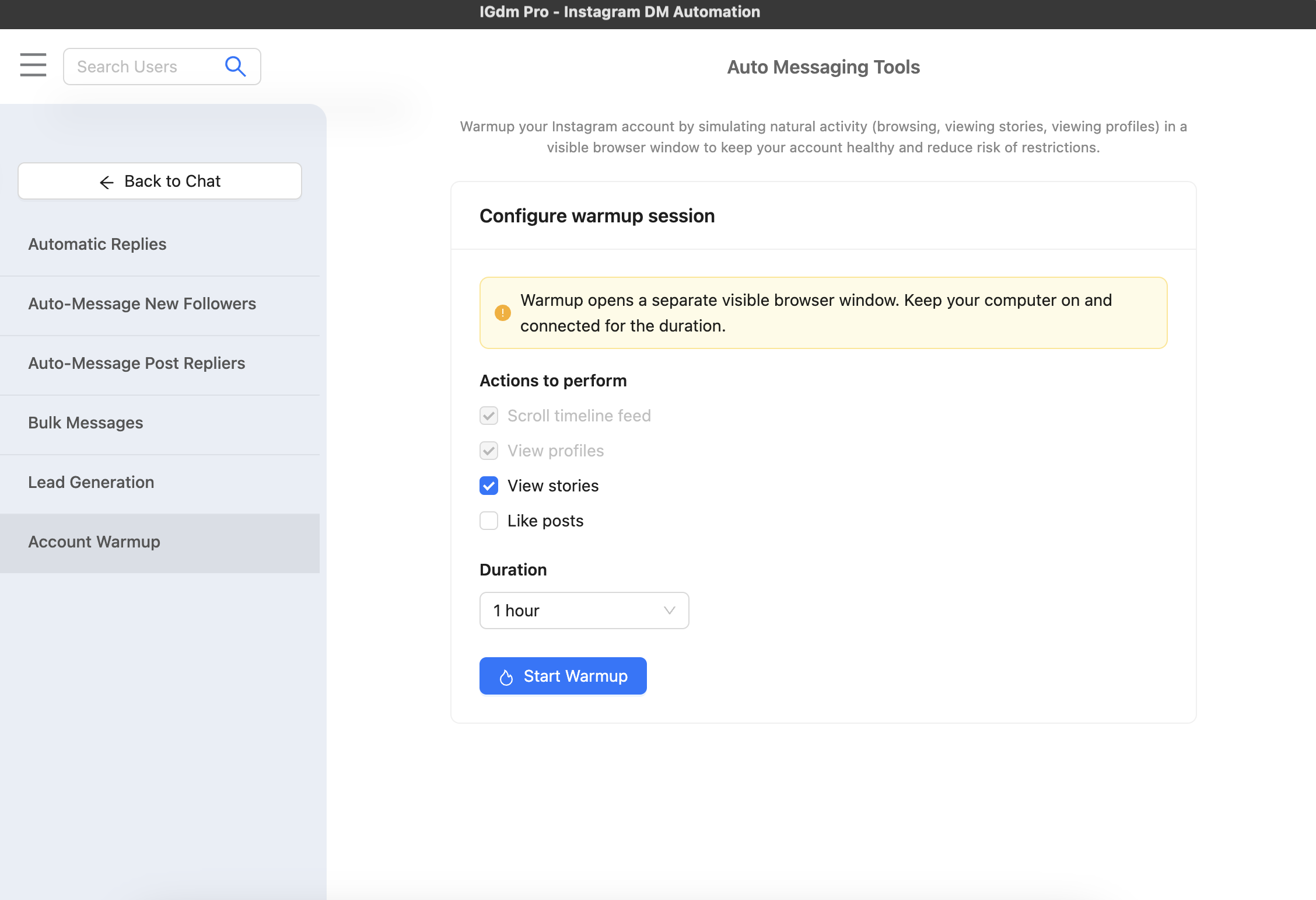
- In the left sidebar, under Auto Messaging Tools, click Account Warm up.
You will see the form available to configure your Warm up session before starting it.
Configure Actions and Duration
Under Actions to perform:
- Scroll timeline feed and View profiles are always on for the session (they keep the run aligned with natural browsing).
- View stories: on by default; you can turn it off if you prefer.
- Like posts: off by default; enable it only if you want likes included in the warm up.
Under Duration, pick how long the session should run. Options include 15 minutes, 30 minutes, 1 hour, 2 hours, 4 hours, and 8 hours.

The warm up uses a separate visible browser window, so keep your computer on and online for the full duration.
Start, Monitor, and Finish
- Click Start Warm up. A browser window opens and the run begins.
- While the session is active, IGdm Pro shows Warm up in progress with a live report (counts such as scroll actions, stories opened, likes, profiles viewed). The session may Take a short break during built-in pauses. That is normal.
- Do not click or type in the warm up browser window; manual interaction can disrupt the run.
- If you need to stop early, use the Cancel Warmup button in the app.
When the session completes, the browser will automatically close, and you will see a summary outlining the stats of the warm up session. You can always click the Start New Warm up Session button if you want to run again.
Note
While IGdm Pro generally allows access to most of its features during the free trial, starting account warm ups requires an IGdm Pro Scale plan. If your plan does not include it, the app will prompt you to upgrade before a session can begin.
Conclusion
The Instagram Account Warm up tool in IGdm Pro is a straightforward way to add steady, browser-based activity alongside your DM automation workflows. Pick your duration, optional story views and likes, start the session, leave the warm up window alone, and let the app handle the pacing.