How to Set a Daily Send Time Window on an Instagram Bulk Message Campaign
IGdm Pro lets you limit bulk message campaigns to specific hours each day. When Daily Send Time Window is enabled, messages are only sent between your chosen start and end times. Once the window closes, the campaign pauses until the next day.
This is useful if you want outreach to look more natural, avoid late-night sends, or match your audience's timezone without babysitting the app.
The time window is configured after a campaign has been created and started. Follow the steps below.
Before you start
- You need an existing bulk message campaign in IGdm Pro. If you have not created one yet, see the bulk messages guide first.
- The daily send window uses the same local timezone as your computer clock.
Step 1: Start the campaign, then pause it immediately
- Open your bulk message campaign in IGdm Pro.
- Start the campaign as you normally would.
- As soon as it begins sending, click the Pause button on the right side of the campaign toolbar.
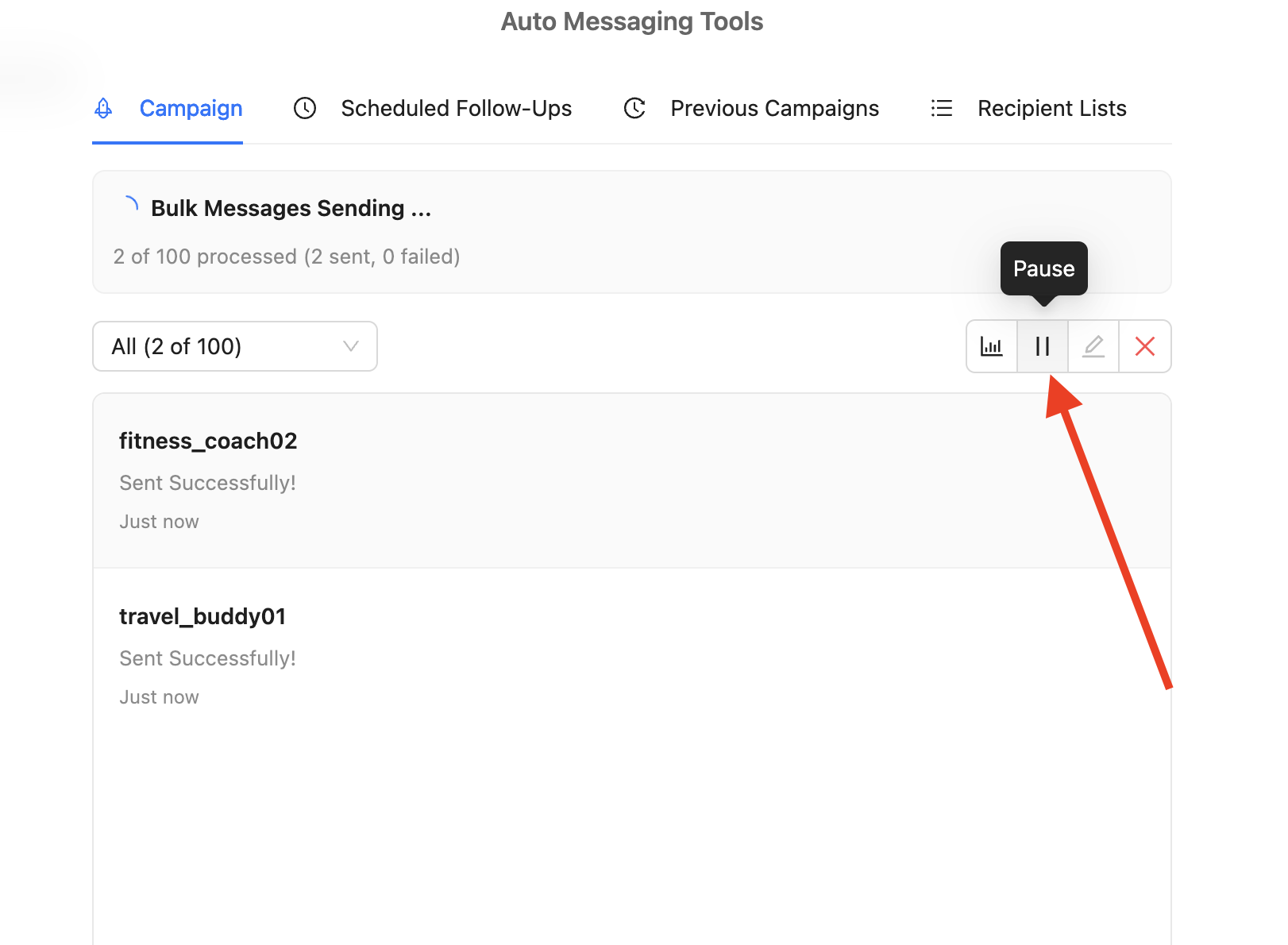
Pausing right after start is intentional. The time window option is available in edit mode on a paused campaign, not while you are first composing a new one.
Step 2: Open edit mode
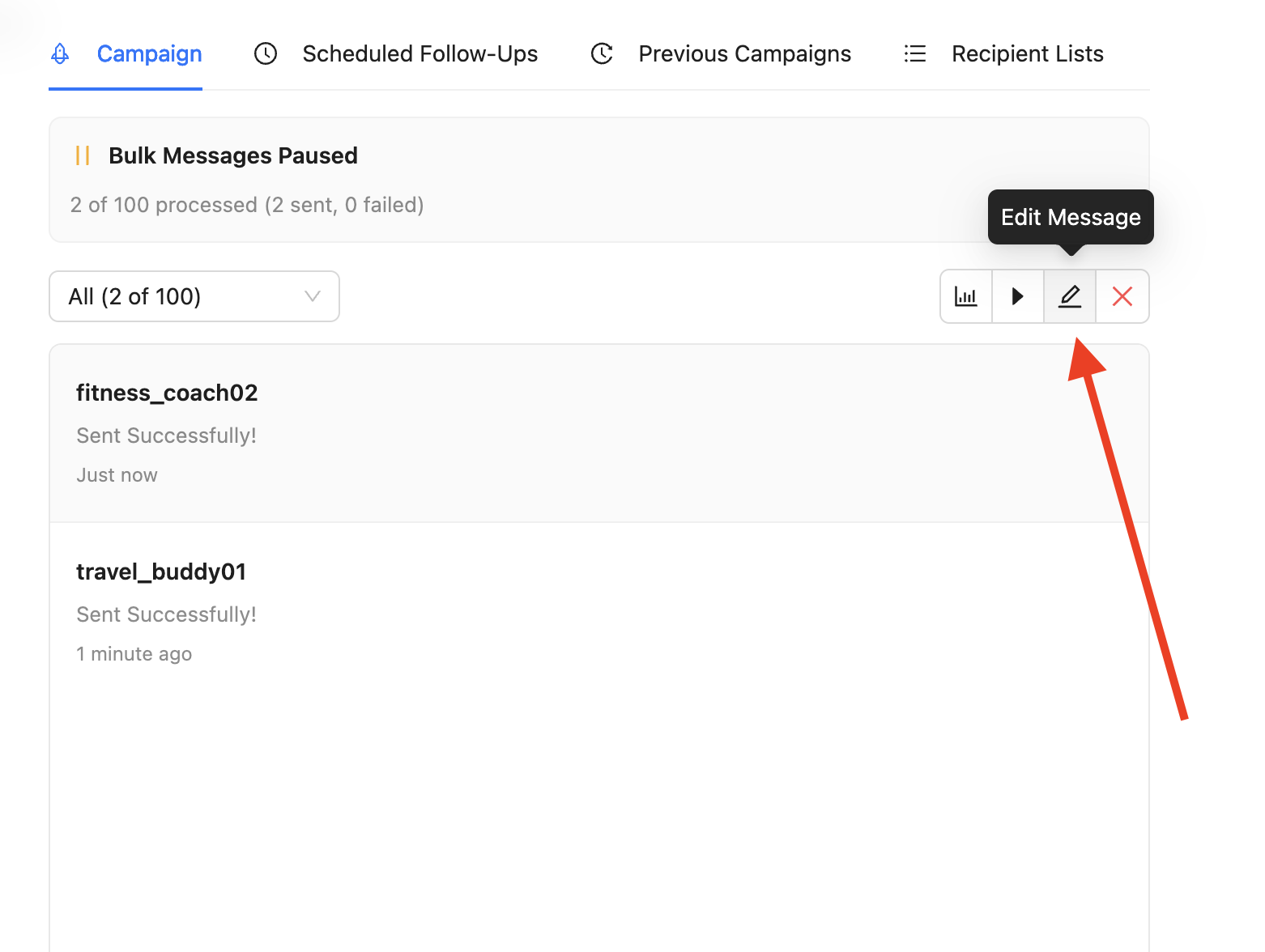
With the campaign paused, click the Edit button (pencil icon) on the right side of the toolbar.
Step 3: Enable and set the Daily Send Time Window
In edit mode, scroll to the Daily Send Time Window section.
- Turn the toggle on.
- Set your Start and End times (for example, 9:00 AM to 5:00 PM).
- Confirm the note below the panel: IGdm Pro uses your computer's local timezone.
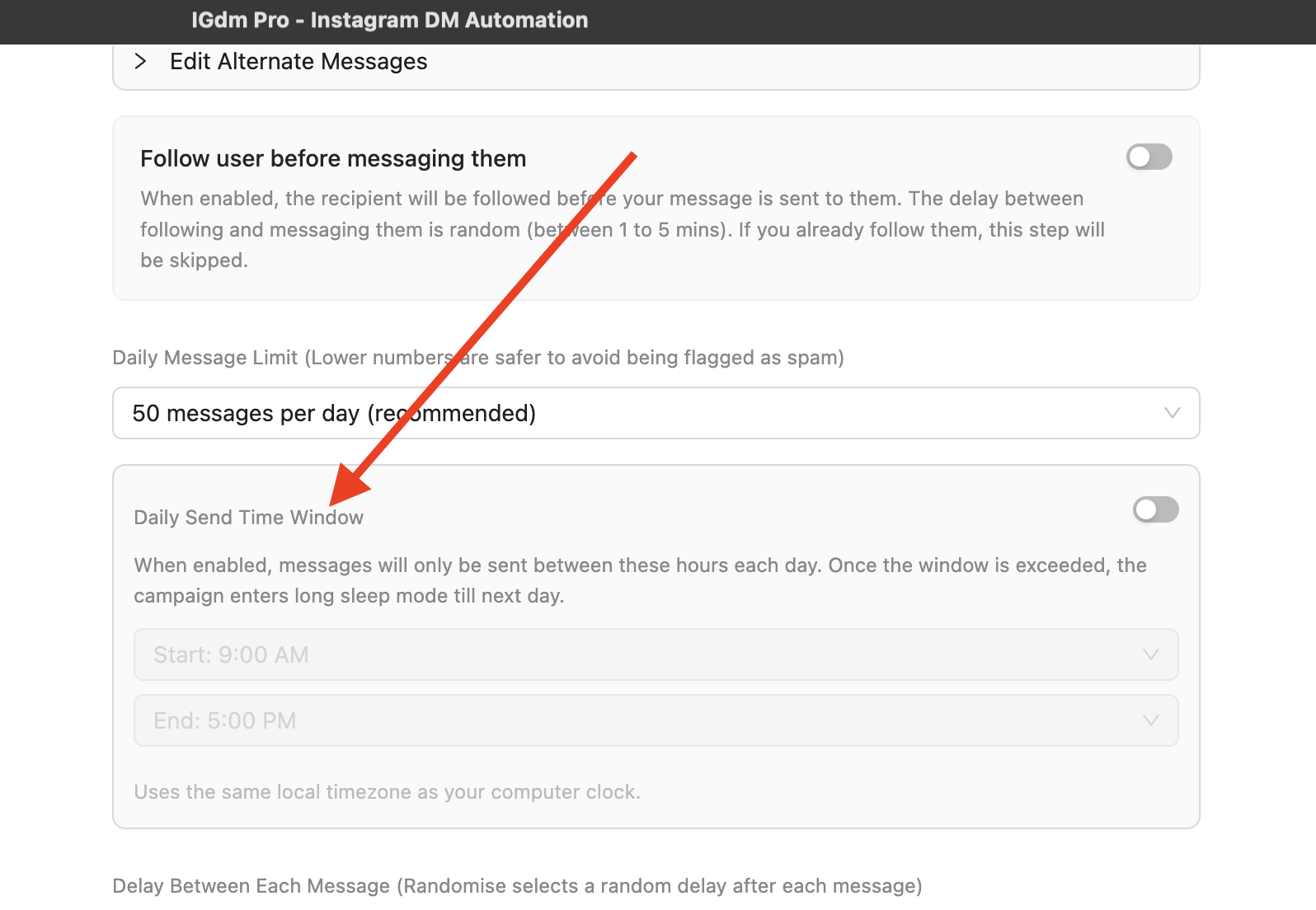
When this is enabled, IGdm Pro only sends during those hours. After the end time is reached, the campaign enters a long sleep until the window opens again the next day.
Step 4: Save and resume
- Save your changes in edit mode.
- Return to the campaign view and click Resume to continue sending within your new time window.
Tips
- Pair the send window with a conservative daily message limit and random delays between messages for safer outreach.
- If you need to change the window later, pause the campaign again and repeat these steps.
- Leave IGdm Pro running on your computer during the send window so messages can go out on schedule.
Need help?
If something does not match what you see in the app, email us with your campaign name and a screenshot of the screen you are on.