AutoIGDM Has Shutdown, but here's an Alternative for Instagram Outreach
If you used AutoIGDM for Instagram outreach, the recent shutdown notice might have caught you by surprise.
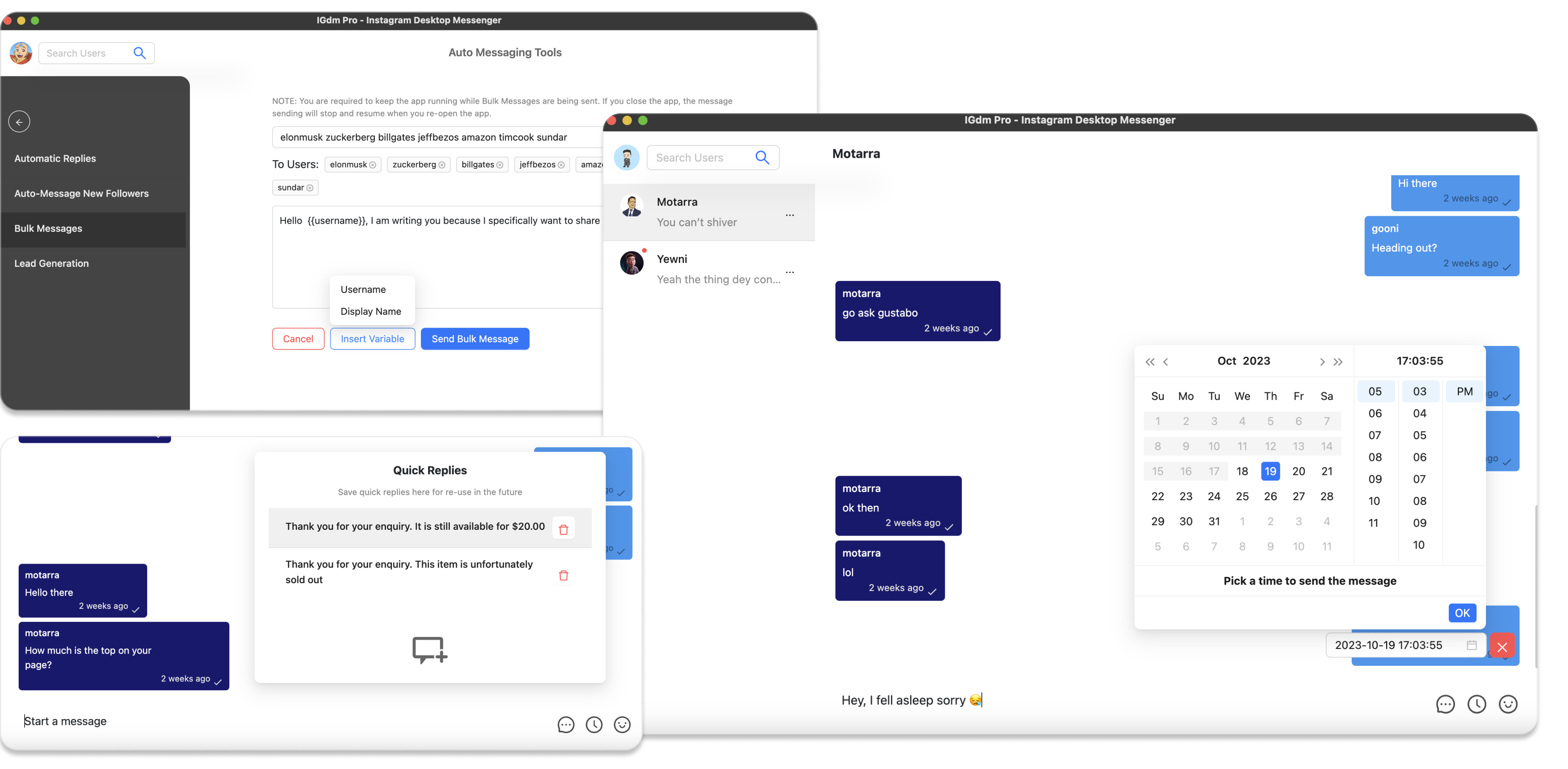
If you are now evaluating what to use next, this guide shows a practical way to run a similar outreach process with IGdm Pro: import recipients, personalize messages, set pacing controls, and manage replies in one workflow.
The goal here is simple: help you move from your previous setup to a stable day-to-day outreach routine with minimal friction.
What most teams need from an outreach tool
Most Instagram outreach workflows include:
- Bulk DM sending to targeted users.
- Personalization using username/name fields.
- Follow-up sequences.
- Inbox handling while campaigns are active.
IGdm Pro supports the same core flow and gives you flexible controls for pacing and campaign configuration.
How to run the same outreach workflow in IGdm Pro
1. Install IGdm Pro and connect your Instagram account
- Download IGdm Pro from igdm.me.
- Open the app and log in through the browser login flow.
- Confirm the account you use for outreach is loaded correctly before creating campaigns.
2. Import your recipients
In the Bulk Messages interface, you have the option to upload a CSV list of your leads.
Supported columns:
username(required)message(optional, but useful for fully custom per-contact text)
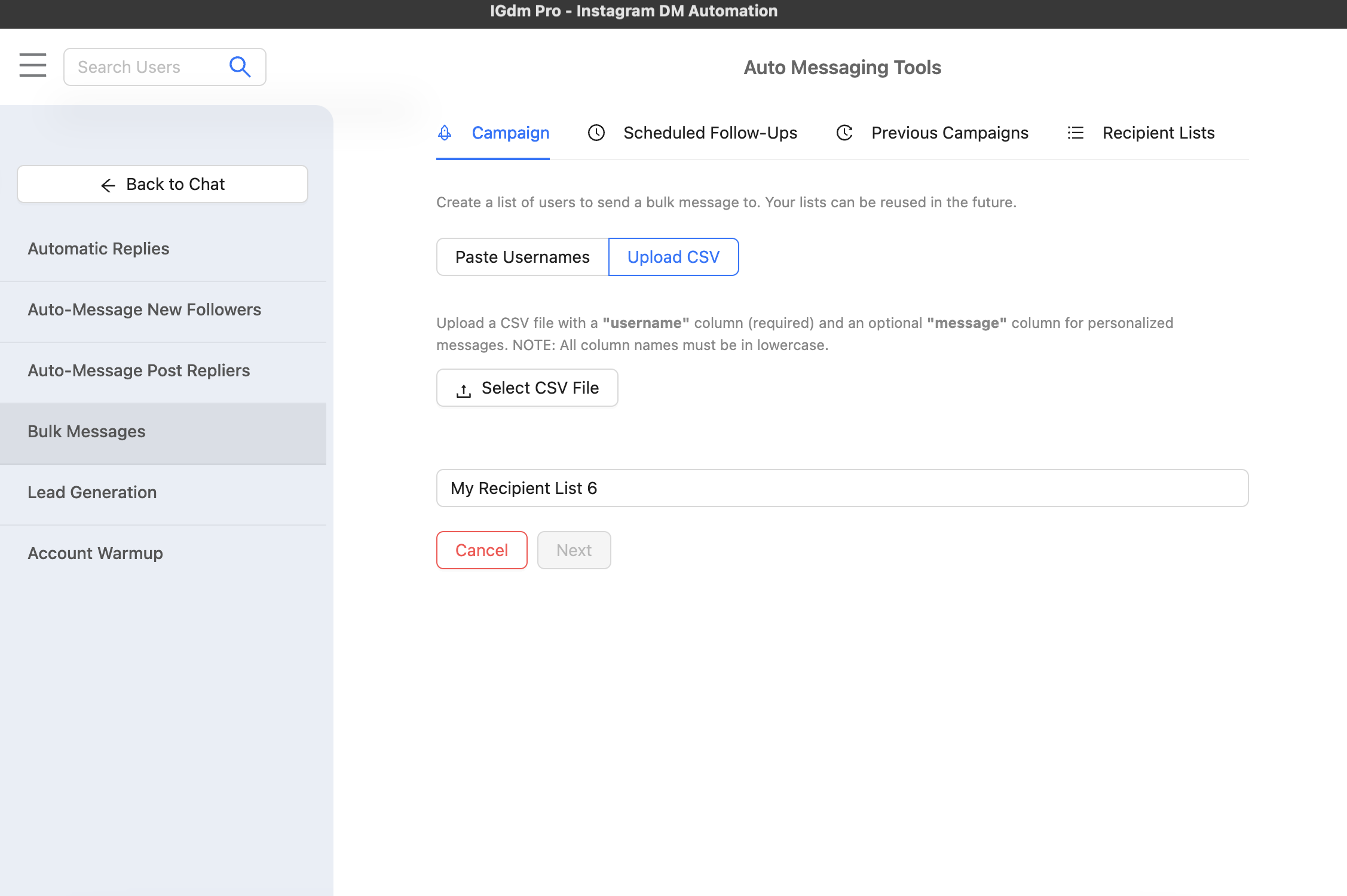
This gives you a familiar list-based outreach structure.
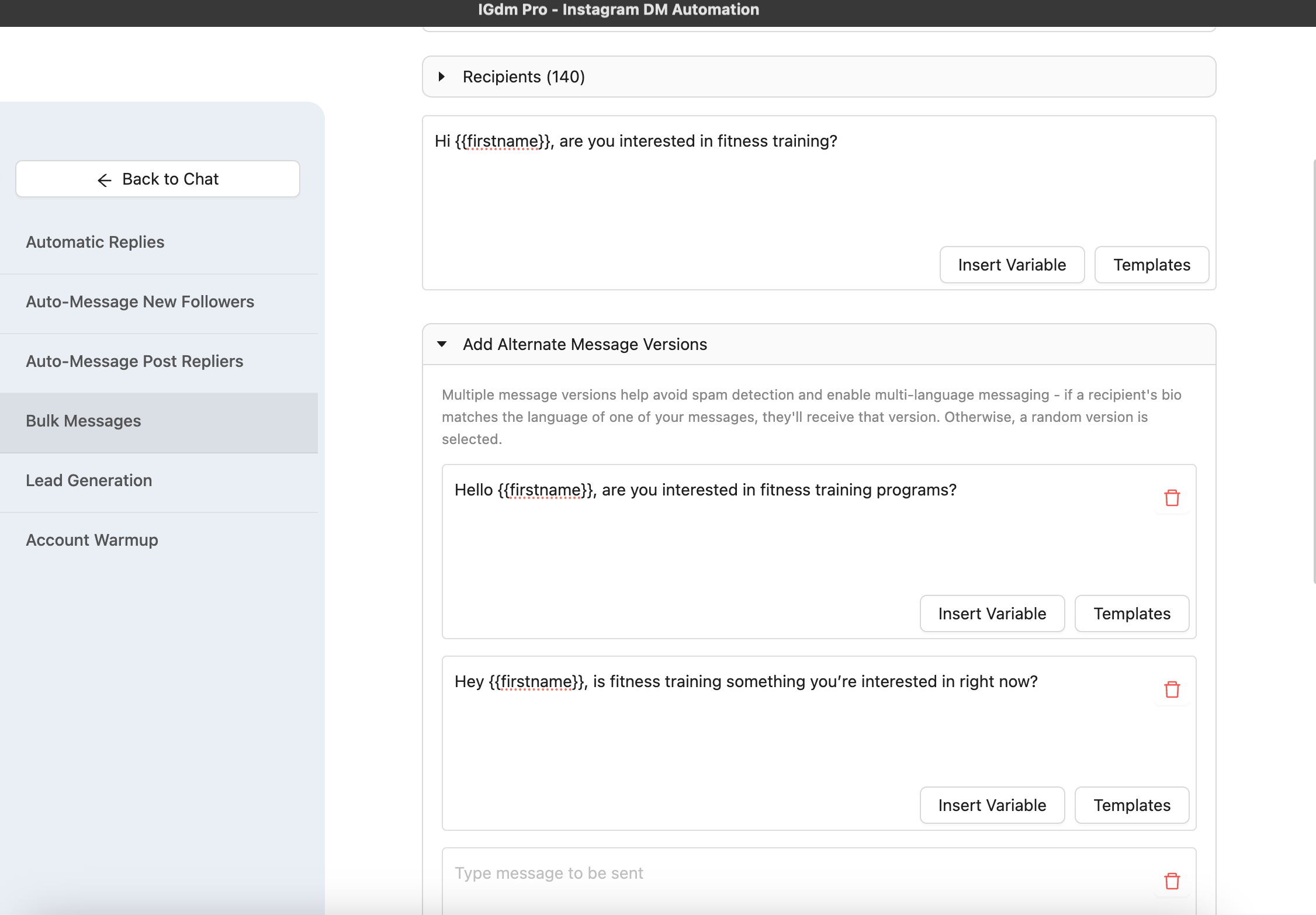
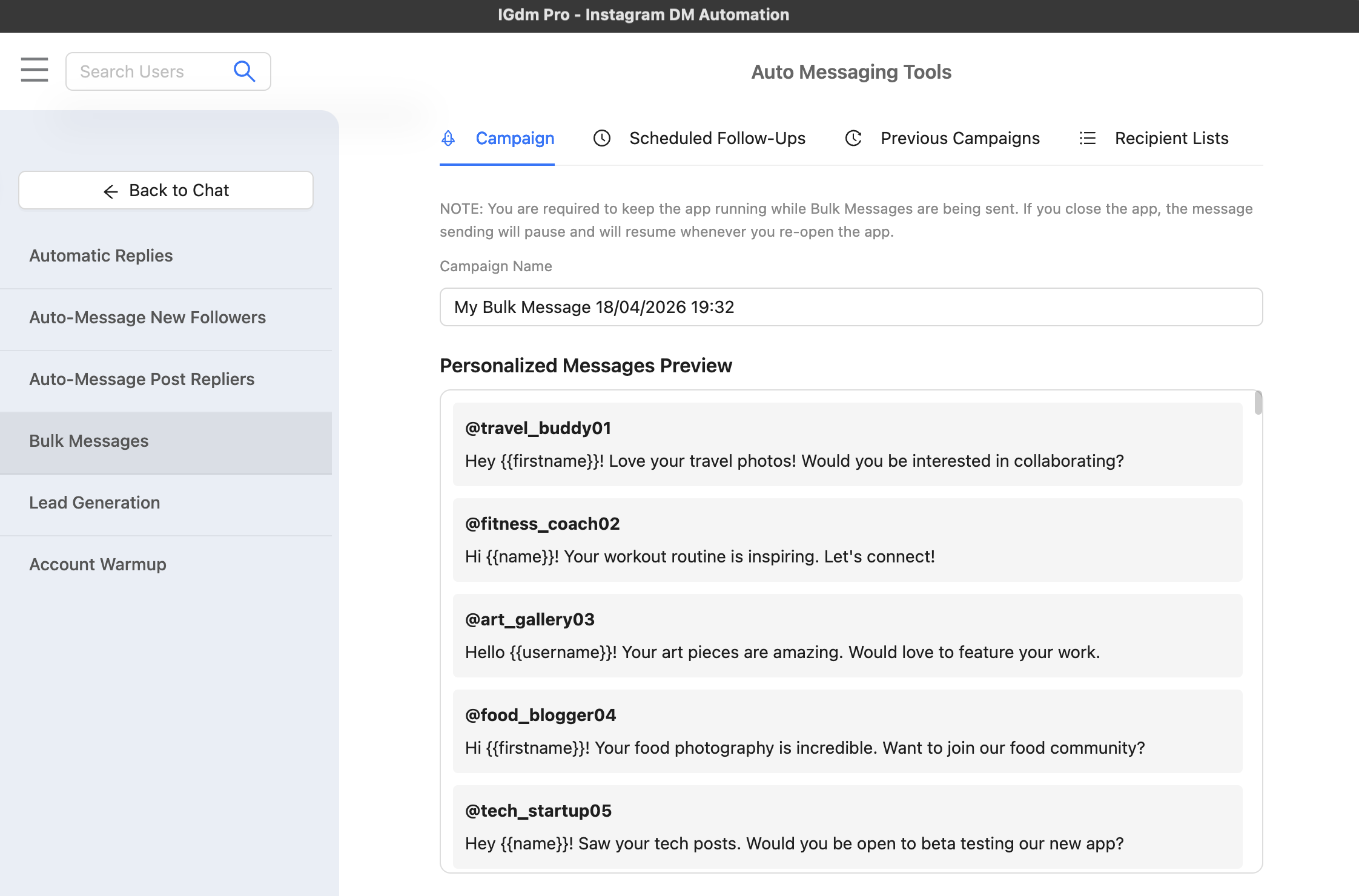
3. Build messages with variation
To avoid sending the exact same copy to everyone:
- Use alternate message versions in IGdm Pro.
- Or provide unique copy per row via CSV
messagevalues.
4. Set conservative sending controls
Before launching:
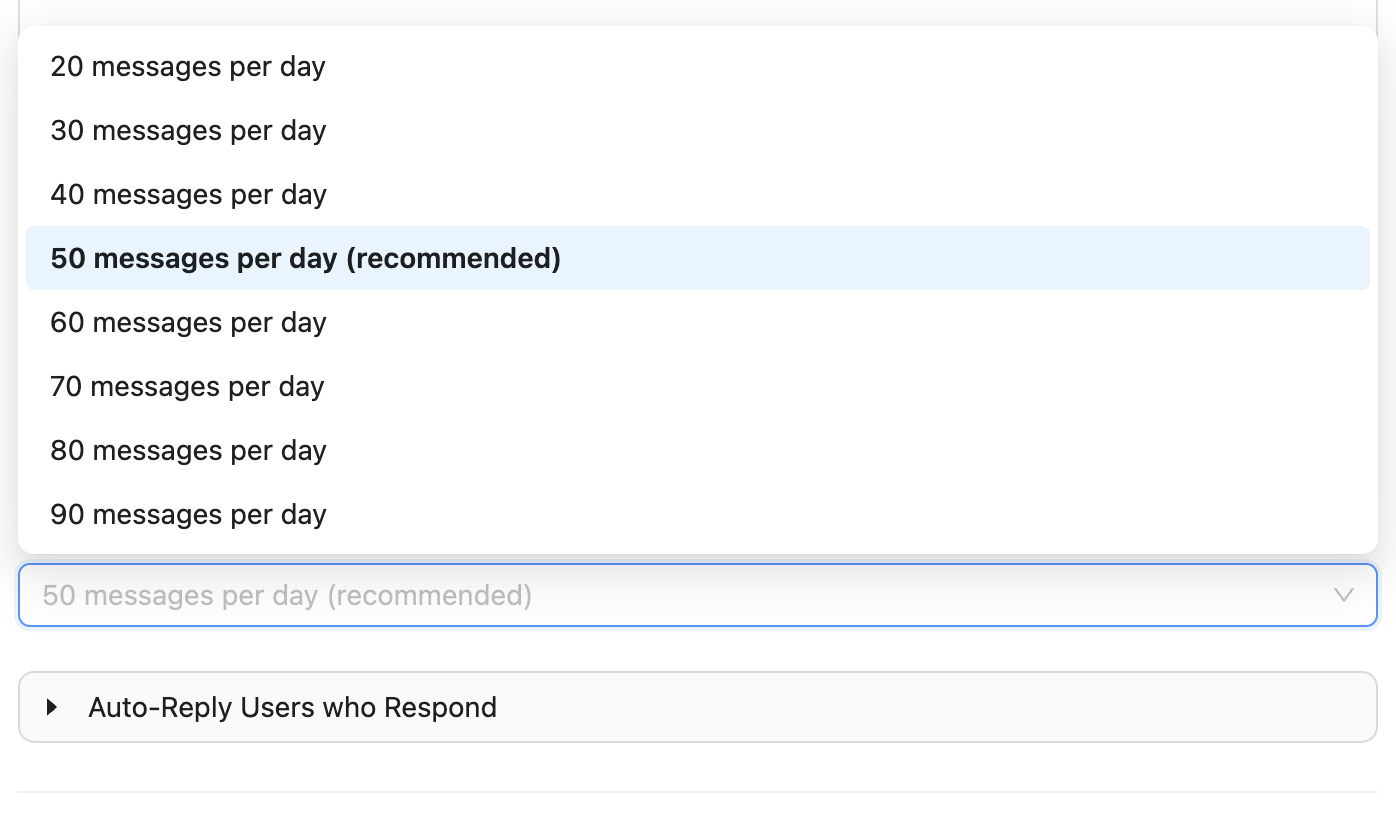
- Set a realistic daily message limit.
- Use randomized delay between messages.
- Keep limits lower when moving a new/quiet account into outreach again.
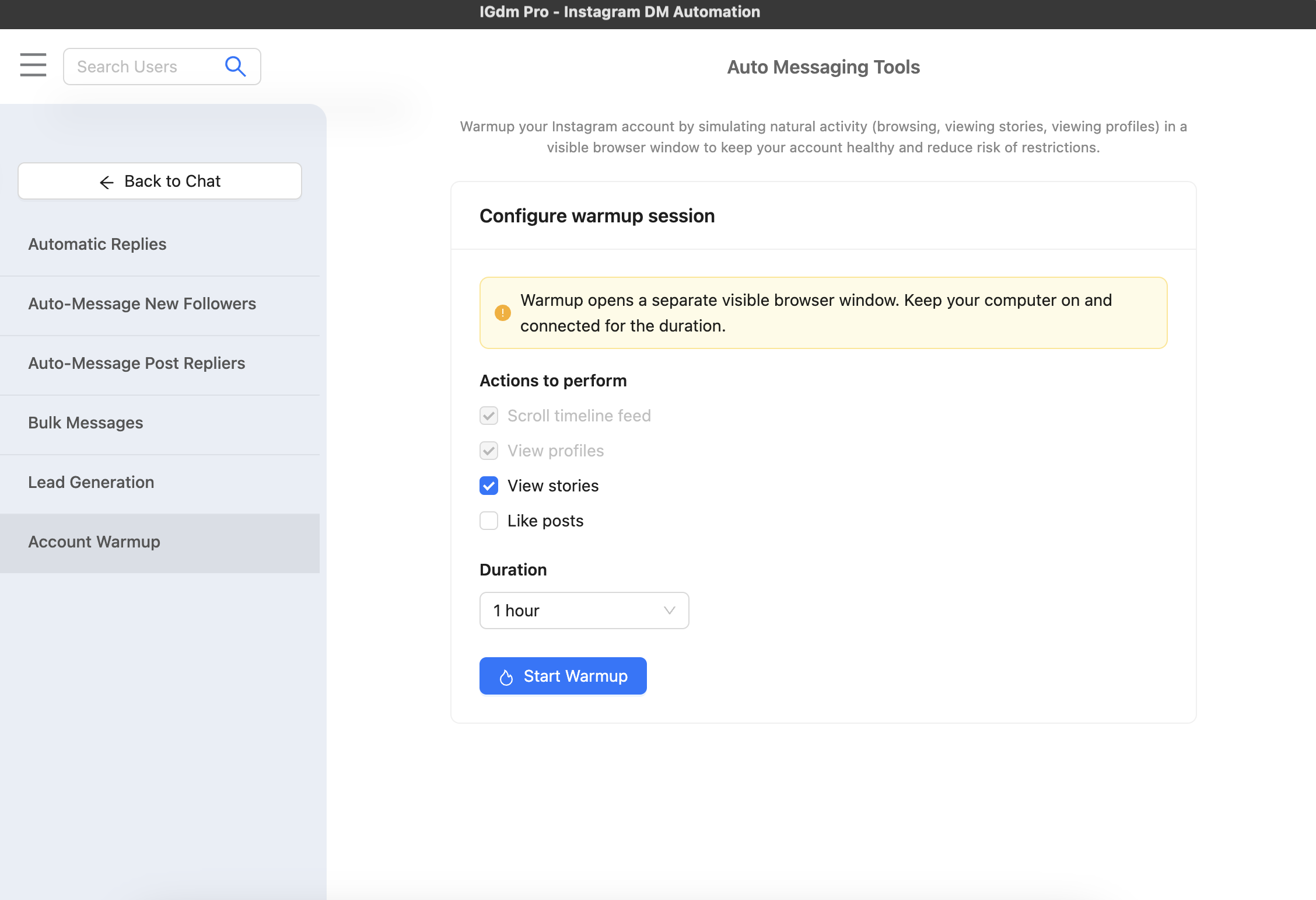
If your account has been inactive or you are ramping up campaign activity, run Account Warm up first.
5. Turn on follow-up and reply handling
You can configure:
- Follow-ups for non-responders.
- Auto-replies for common inbound messages.
- Conditions like skipping follow-ups after a real reply.
This keeps conversations moving without turning every step into manual work.
Simple migration checklist (AutoIGDM -> IGdm Pro)
- Export/clean your active outreach list.
- Rebuild your core scripts (main opener + alternates).
- Start with lower daily limits for the first week.
- Use delay randomization by default.
- Monitor replies and adjust copy after the first 200-500 sends.
Why teams choose this workflow
IGdm Pro is especially useful if you care about:
- Running campaigns from a desktop workflow.
- Better control over campaign pacing and safety.
- Combining outreach + inbox operations in one app.
- Growing volume gradually without hard switching to risky behavior.
Final take
A shutdown notice can interrupt plans, but your outreach process does not have to pause for long.
If your objective is to keep doing personalized outbound at scale, IGdm Pro gives you a practical path: import leads, vary messages, set pacing controls, and manage replies in one place.
Start with one campaign, validate response quality, then scale from there.