ManyChat's Follow to DM not Working? Here's an Alternative that Works
In the fall of 2025, ManyChat introduced its Follow to DM automation which automatically sends welcome messages to your new Instagram followers. This quickly became interesting for creators, agencies, and brands that want to respond faster to new followers.
However, some users have reported issues with getting it to work, so if your Follow to DM flow is not working consistently, you are not alone.
IGdm Pro provides a reliable and user-friendly solution to automatically DM your new Instagram followers, with additional options for follow-ups, and auto-replies.
In this guide, we'll walk through how to set up IGdm Pro for Follow to DM automation and make the most of its features, including the following:
- A welcome message for new followers
- Optional follow-up messages
- Optional auto-replies when a follower responds
1. Install IGdm Pro and log in
- Download IGdm Pro for your OS and install it.
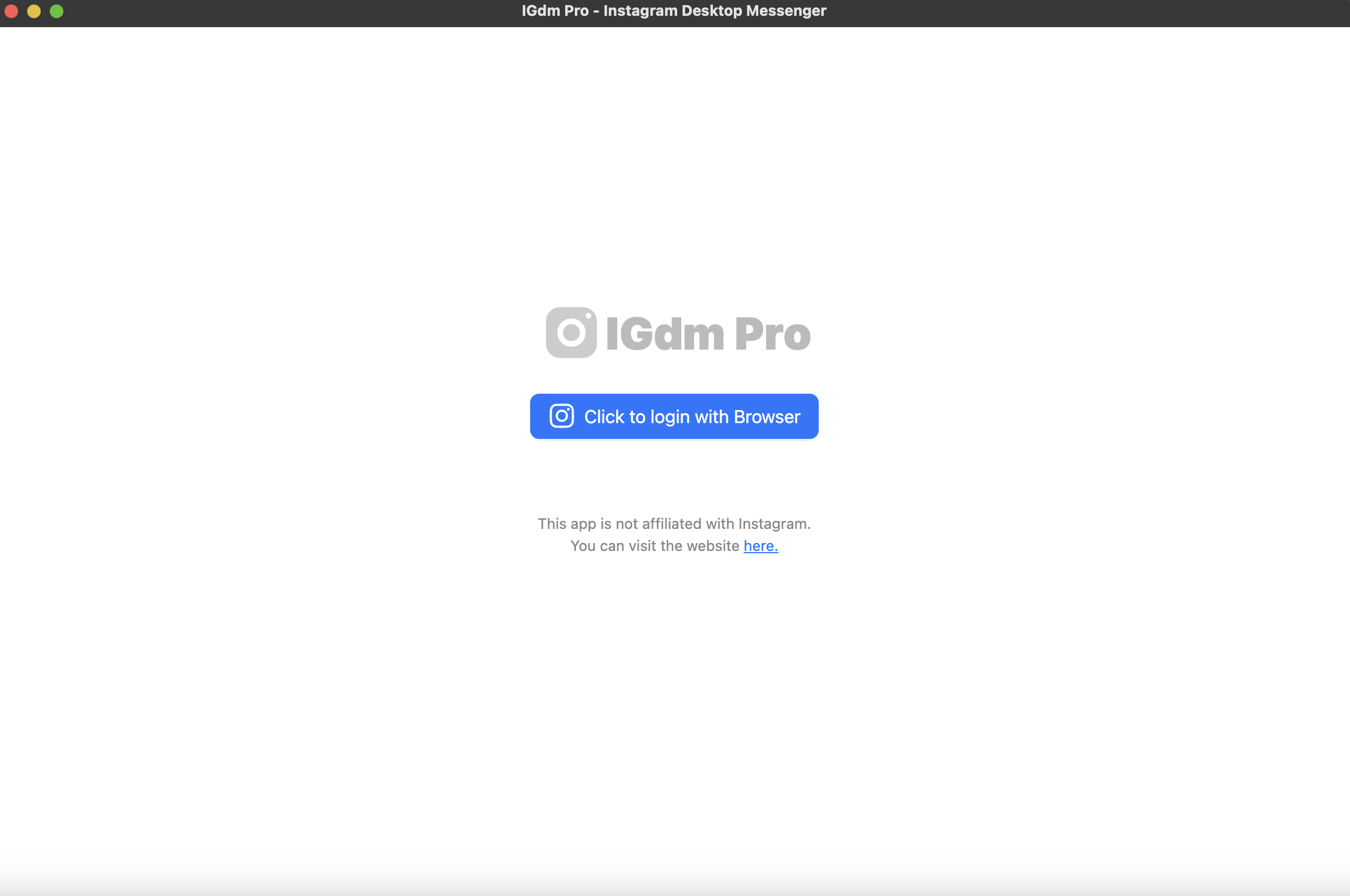
- Launch the app and click Click to login with Browser.
- Log in to Instagram in the opened browser window.
- Return to IGdm Pro after login completes.
2. Open the Follow to DM tool
- In IGdm Pro, open your account menu (top-left avatar).
- Go to Auto-Messaging Tools.
- Choose Auto Message New Followers.
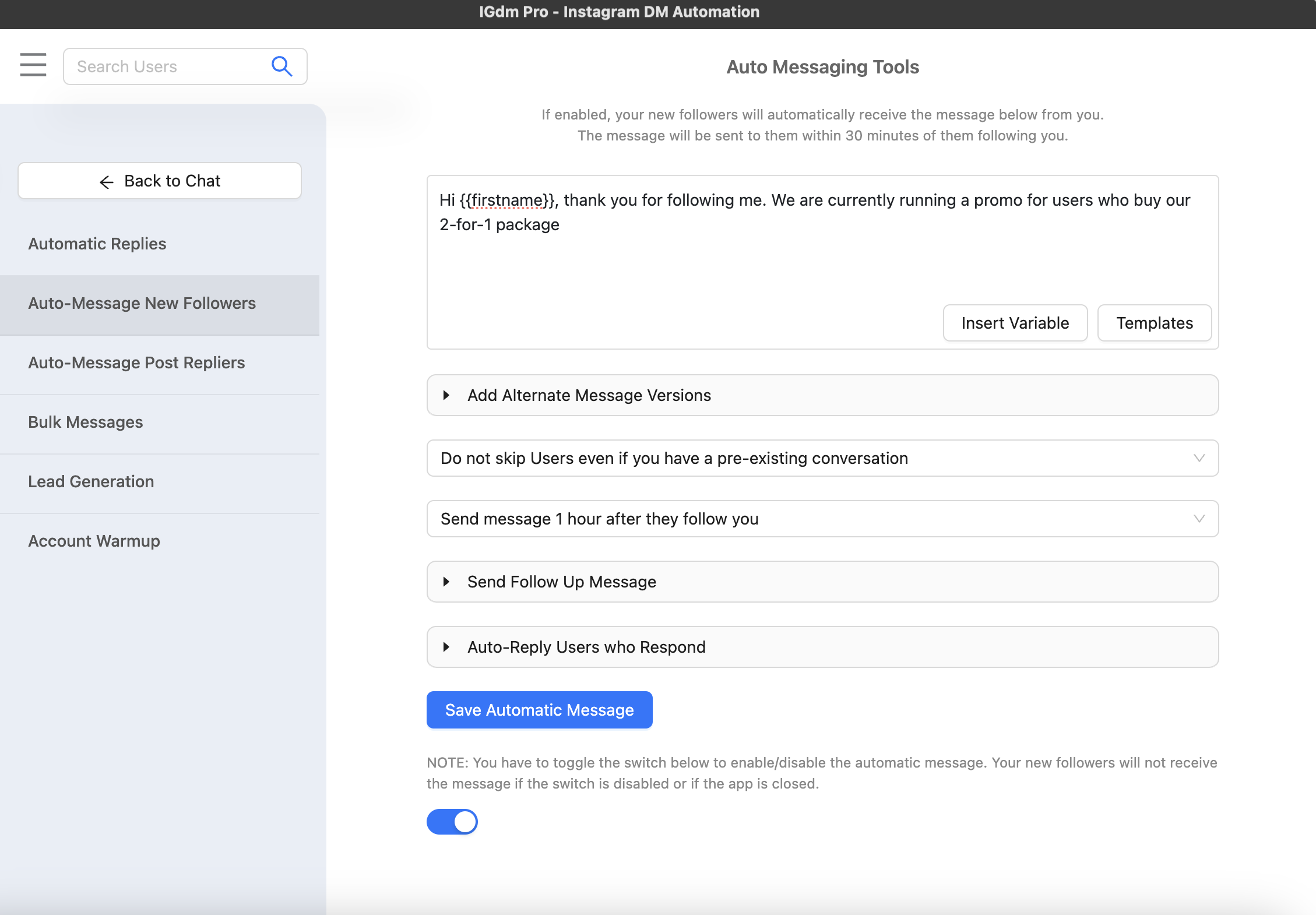
You will see the Follow to DM form where you can compose your message, define delays, and configure optional automation blocks.
3. Configure your welcome message
In the main message box:
- Write the welcome message you want new followers to receive.
- Use Insert Variables for personalization (for example username/display name fields).
- Save the configuration with Save Automatic Message.
Then set timing from the delay dropdown (for example 30 minutes after follow).
4. Add optional follow-up messages
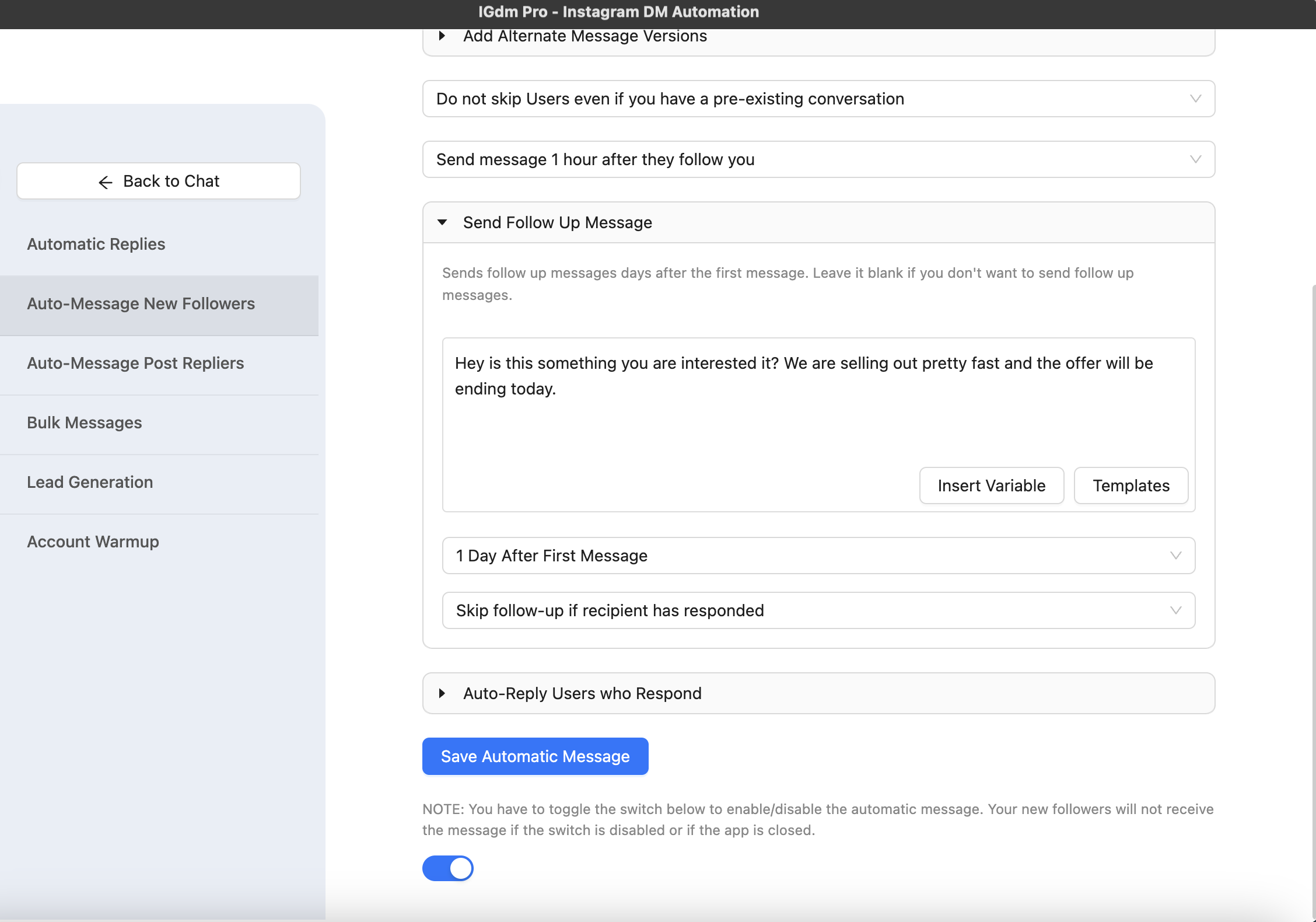
If you want to continue the conversation automatically, open Send Follow Up Message:
- Add your follow-up text
- Choose when it should send (for example 1-3 days after the first message)
- Choose whether to skip follow-up if the recipient already replied
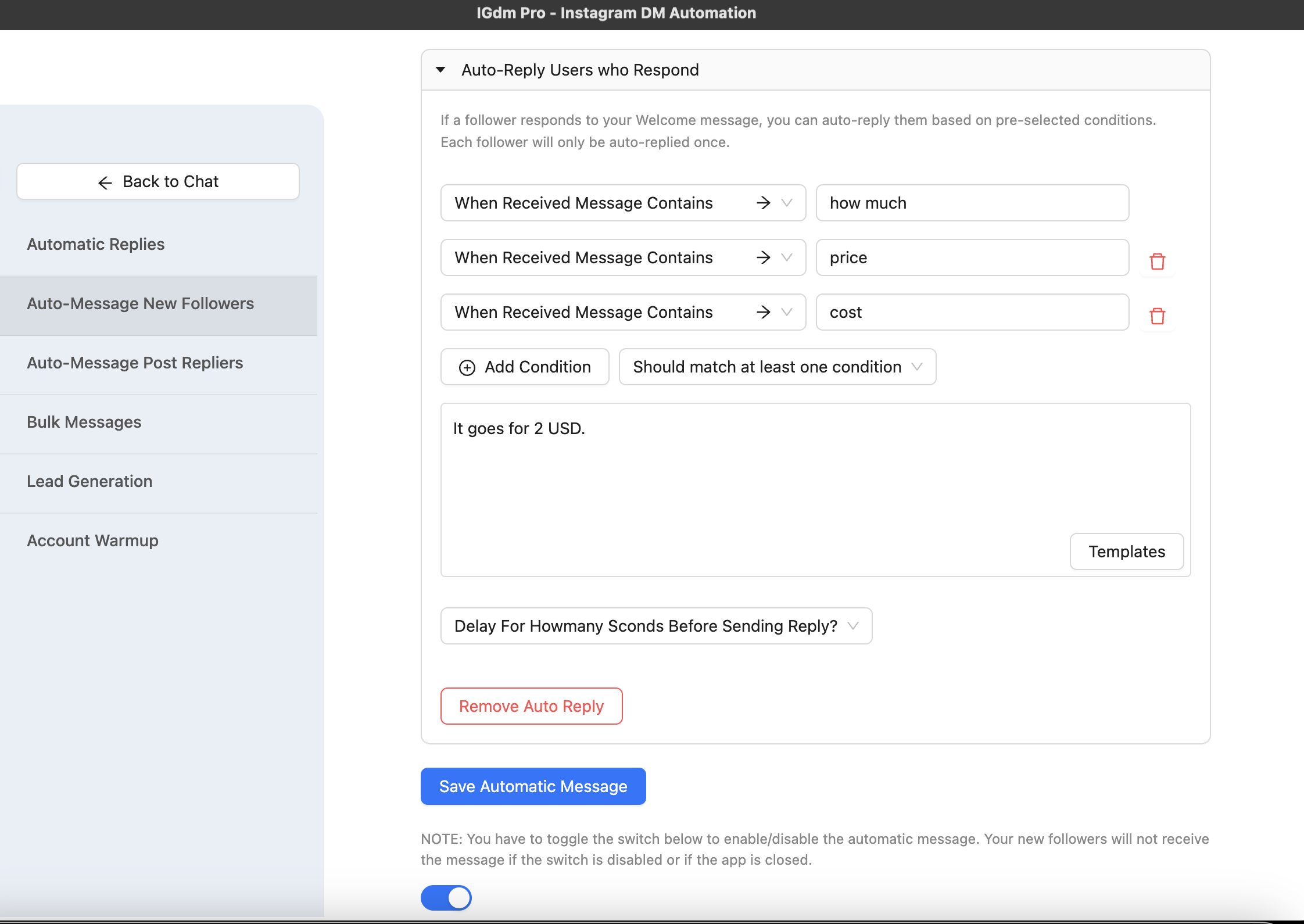
5. Add optional auto-reply for follower responses
If you want a second automation layer after a follower replies, open Auto-Reply Users who Respond:
- Add conditions for when auto-reply should trigger.
- Set the response message and optional delay.
- Save together with your main Follow to DM config.
6. Enable and keep it running
- Toggle the feature ON in the Follow to DM screen.
- Keep IGdm Pro running so new-follow message automation can keep processing.
This is important: if the app is closed, new follower automation pauses until the app is running again.
7. Recommended best practices
- Keep your first message short, friendly, and specific.
- Use variables so messages feel personal.
- Test with a few follower accounts before relying on it at scale.
- If needed, add alternate message versions to avoid repetitive wording.
Conclusion
If ManyChat's Follow to DM is not working as expected in your workflow, IGdm Pro gives you a straightforward alternative with direct control over your new-follower messaging setup.
You can start simple with one welcome message, then add follow-ups and auto-replies as your workflow matures.